Call Manager: the feature guide
A tour of everything the module does, with a picture of each part doing it. If you are installing for the first time, or something is broken, read the manual instead - it has the requirements, the install steps, the full settings reference and the troubleshooting. This guide assumes the thing is already running.
The names, numbers and companies in every picture below are invented. Your own call list will show your reps and your customers, but the layout and the controls are exactly what you see here.
1. What you get
Two halves that only make sense together. On the phone, an Android app that reads the handset's own call log and sends it to your CRM. In the CRM, a module that takes those calls, works out who each one was with, and files it against the right lead or customer.
Nothing is dialled through a third party. There is no Twilio account, no per-minute charge and no separate subscription. Your reps make calls the way they already do, with the phone app they already use, and the calls turn up in the CRM a moment later.
The rest of this guide is what happens after that.
2. Pairing a phone
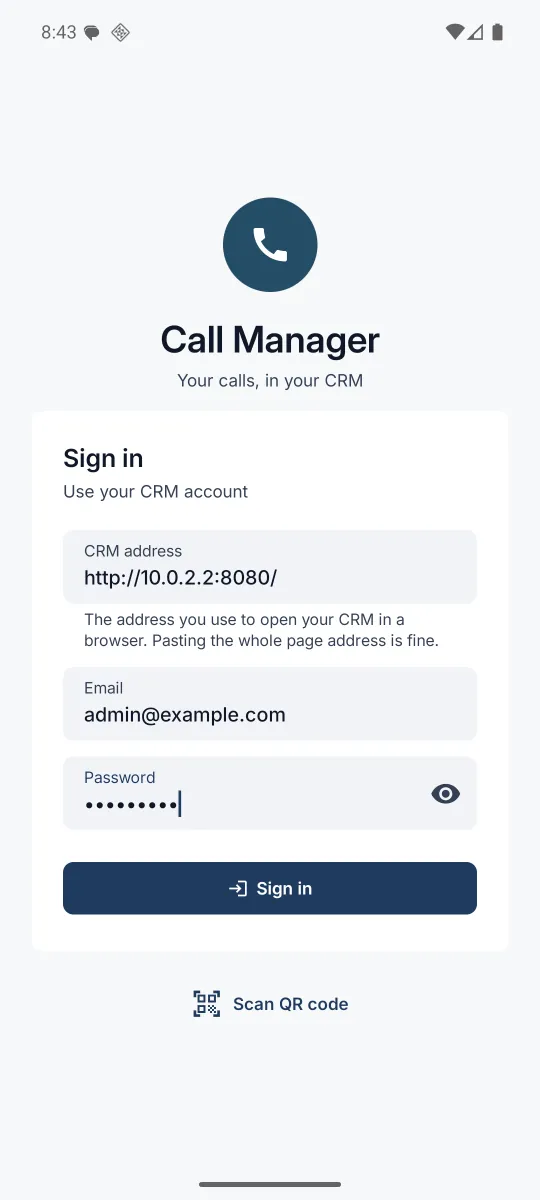
Setting a rep up used to mean reading an https address off a screen and typing it, plus a password, on a phone keyboard. That is the single most common way an install goes wrong. So the module gives you a QR code instead.
Each person opens Call Manager → Pair a device in their own CRM session and points their phone at the screen. The app reads the address and a short-lived token out of the code and signs itself in. Nothing is typed.
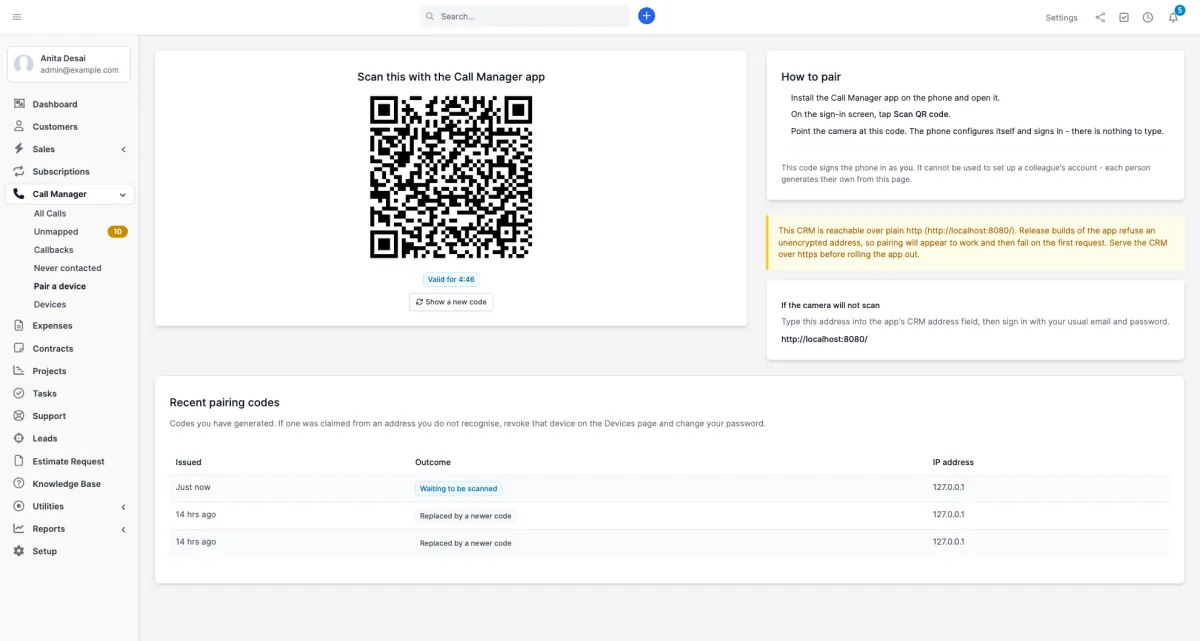
There is deliberately no "pair this rep's phone for them" button. A pairing code is a full session: whoever scans it can read that person's call history and play recordings of their conversations. An administrator who could mint one for any staff member could impersonate them, in a system whose own audit log would then blame the rep. So every rep generates their own, from their own login.
If the camera will not cooperate, or the phone has no camera worth the name, the same page prints the address to type by hand. The app also accepts the whole page address pasted in; it trims it down itself.
3. Consent and permissions
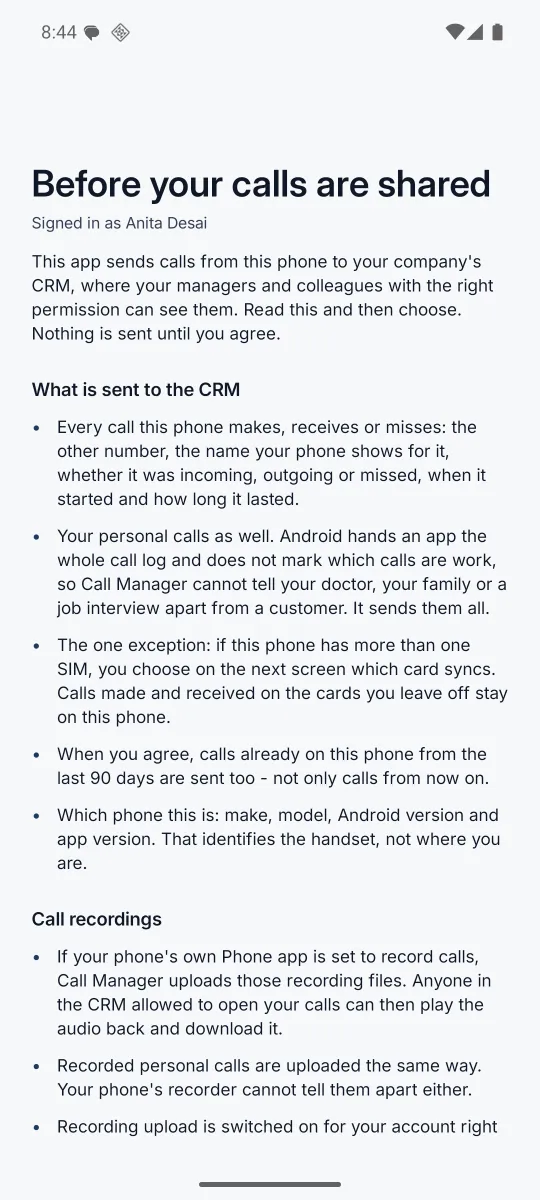
Before a single call leaves the handset, the app shows the rep what it is about to do. This is not a checkbox buried in a licence agreement. It is a page that says, in short sentences, what gets sent and what the rep cannot control.
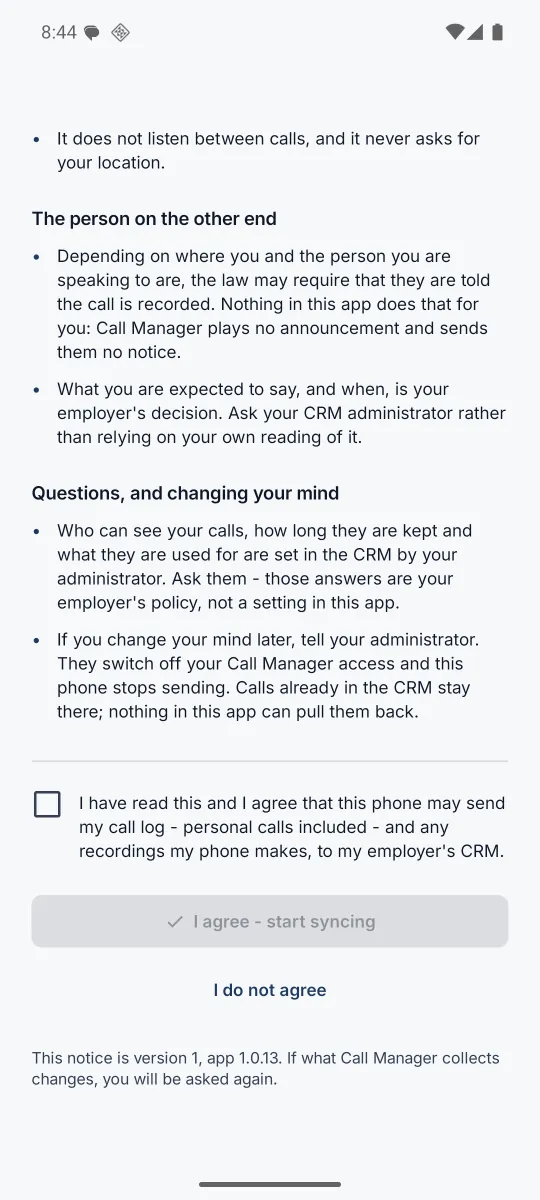
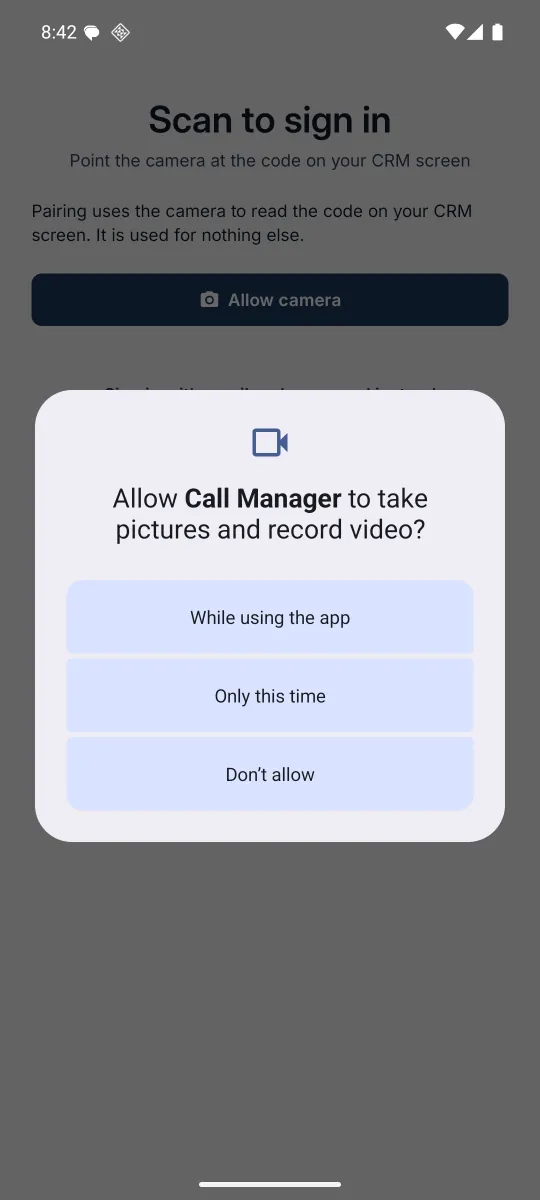
Then two Android permissions, each with the reason next to it rather than a bare system dialog.
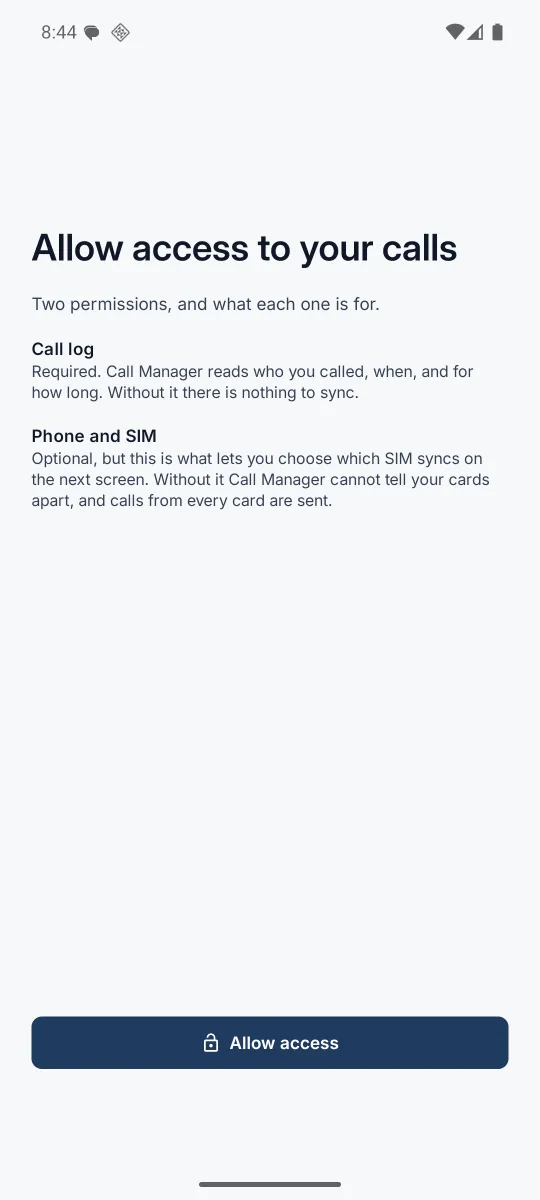
Once the rep agrees, the calls already on the phone are sent straight away, all in the same go. The Calls tab says how far it has got - Reading your call history, then Sending call history · 1,200 of 3,022 over a bar that fills as the CRM takes each batch - and shows Loading your CRM contacts… while the phone downloads the names it uses to recognise a caller without a signal. Nothing waits on it: the app can be used throughout. On a test handset, 3,022 calls were in the CRM about ten seconds after the rep agreed.
4. The call list
Call Manager → All Calls is where the team's calls land. One row per call, newest first. Above the table sit the filters, the quick views and the saved views, and every column can be shown, hidden or moved. All of it is described below the column guide.
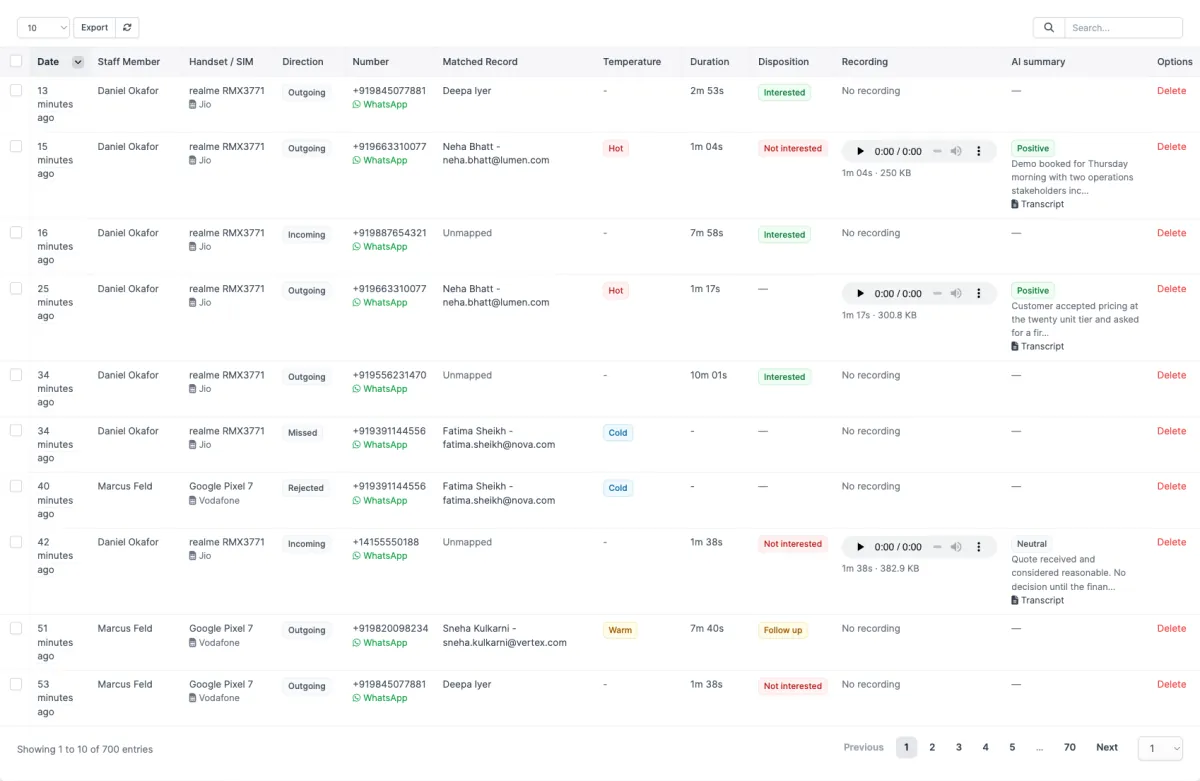
A few of those columns are worth a sentence each.
| Column | What it is telling you |
|---|---|
| Handset / SIM | Which phone the call was made on, and which card in it. Useful the moment a rep carries two phones, or one phone with a work and a personal SIM. |
| Direction | Incoming, outgoing, missed or rejected. Missed and rejected calls have no talk time, which is why their duration reads as a dash rather than zero. |
| Matched Record | The lead, customer or contact this call was filed against, or Unmapped if the number is nobody the CRM knows yet. See section 5. |
| Temperature | Hot, warm or cold, set on the record rather than the call. It shows here so a manager can see at a glance whether the day went on the right people. |
| Duration | Talk time, not ring time. An outgoing call that rang out shows no duration, which is what makes "unanswered outgoing" a number worth looking at. |
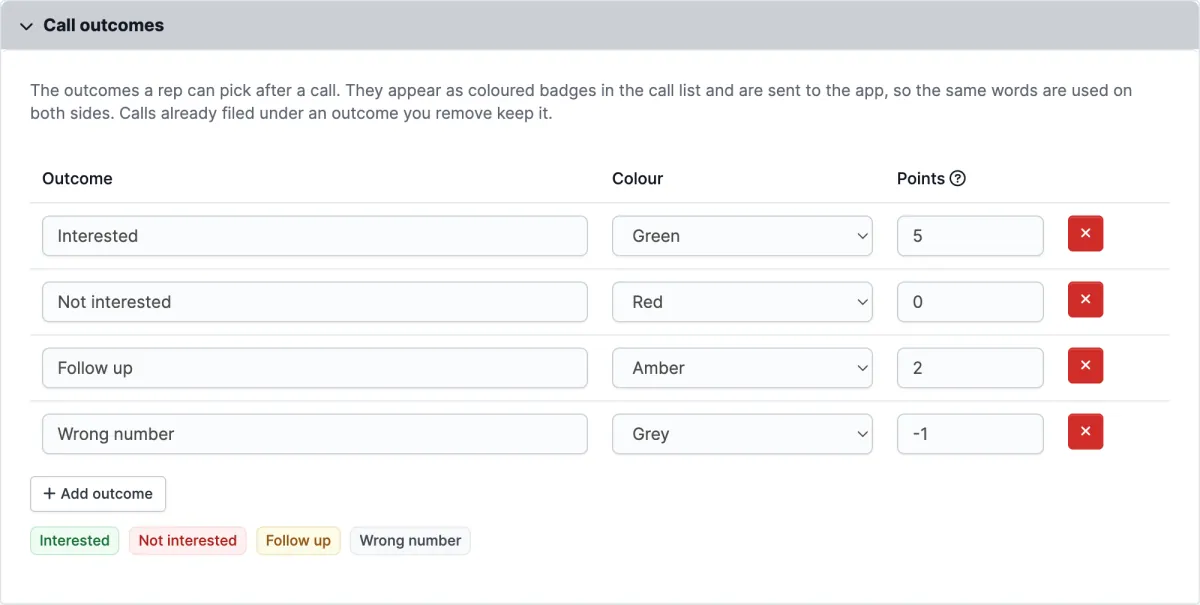
| Disposition | The outcome the rep picked from your own list. You decide the words and the colours in the settings, and the app offers the same ones. |
Finding calls: search and filters
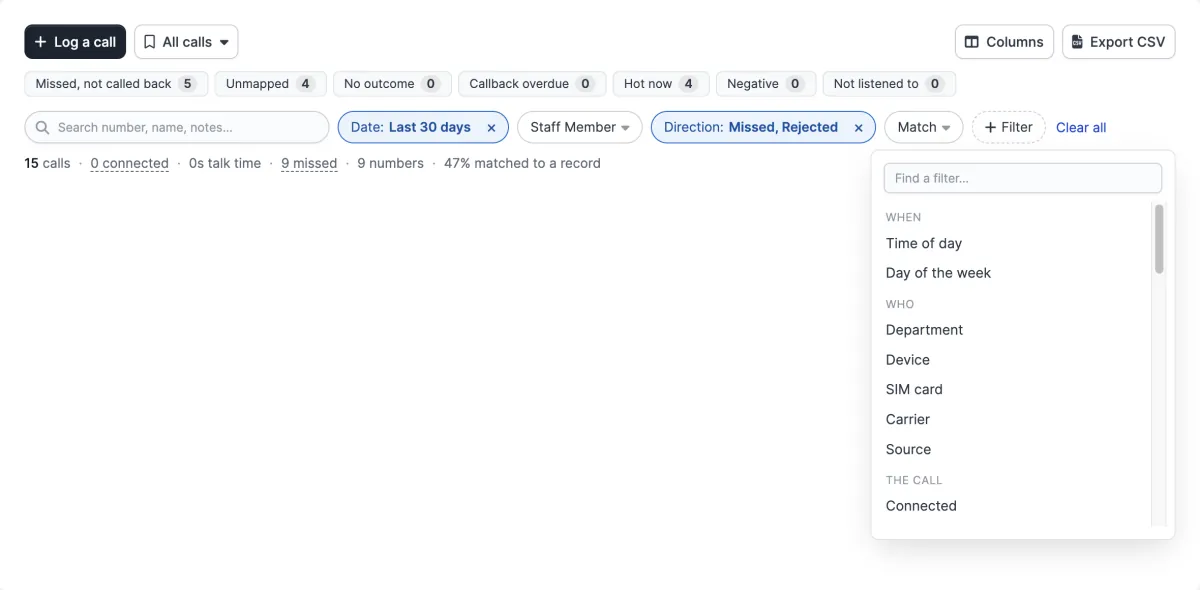
- Search finds a number however it is typed (spaces, dashes, with or without the country code), a name saved on the phone, a note, the matched lead, customer or contact, the rep, the outcome or the SIM card.
- Date, Staff Member, Direction and Match are always on the bar. Click a chip to choose; it fills in and shows what it holds, for example Direction: Missed, Rejected. The × on a chip removes it and Clear all removes everything.
- + Filter opens every other filter, grouped and searchable. The table below lists them.
- Is / is not. Any list filter can be turned round, for example Disposition is not Wrong number.
- Filters combine: each one you add narrows the list further. The table updates as you choose, with no Apply button to press.
- The address bar keeps the filters. Bookmark the page, or paste the address to a colleague, and it opens on the same calls. They still see only the calls their own access allows.
- The summary line under the bar counts the whole result: calls, connected calls, talk time, missed calls, distinct numbers and how many are matched to a record. Click connected or missed to filter on it.
| Group | Filters |
|---|---|
| When | Date (today, yesterday, this or last week, last 7, 30 or 90 days, this or last month, this year, or any range), time of day (office hours, morning, afternoon, evening, night, or any hours, overnight included), day of the week. |
| Who | Staff member, department, handset, SIM card, carrier, and source (synced from a phone, logged by hand, or demo data). |
| The call | Direction, connected or not, duration (presets, or any range in seconds or minutes such as 2:30), number (contains, starts with, for example +91, ends with, is exactly, is empty), name on the phone, notes. |
| CRM record | Match status (unmapped, needs review, matched automatically, mapped by hand, ignored), record type, record name, matched by and matched on, lead status, lead source, lead owner, customer group, and the record's temperature now. |
| Outcome | Disposition (including none, and old outcomes no longer on your list), temperature at the time of the call, what the call led to (a lead status change, a lost or converted lead, a proposal or estimate sent or accepted, a payment), and the value of that outcome. |
| Recording and QA | Recording available, uploading or none; recording length; recordings much shorter than the call, which usually means the recorder started late; listened to by someone, by you, or never. |
| AI | AI summary status, sentiment, words said on the call (searched in the transcript and the summary, for example a competitor's name), and the call's language. Offered once AI call summaries have been used. |
| Follow-up | Callback (none, upcoming, overdue, done, cancelled) and task (none, open, complete). |
| Smart filters | Missed and not called back (the same rule as the Missed calls report), connected but no outcome picked, first call from a number or a repeat caller, and numbers with a given number of calls. |
Quick views
The row of buttons above the filter bar holds the questions a team asks every day: missed, not called back, unmapped, no outcome, callback overdue, hot now, negative and not listened to. Each shows how many calls it would leave with the rest of your filters in place. One click turns it on and a second click turns it off. Missed, not called back and no outcome are on the phone too (section 18).
Saved views
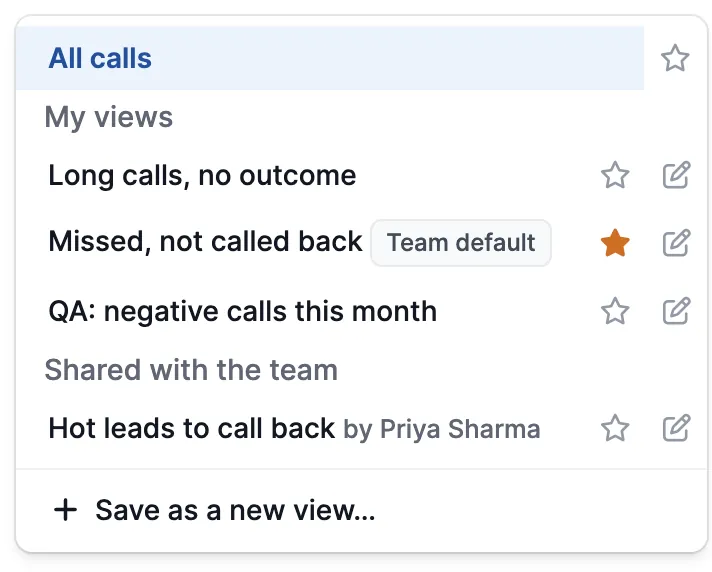
- Save as a new view keeps the filters, and unless you untick it, the columns, sort and page size too.
- Share with the team puts the view in everyone's menu. A rep who can only see their own calls sees only their own calls in it, so a manager can share Missed, not called back this week and each rep gets their own list.
- The star makes a view open whenever you visit All Calls. Starring All calls keeps the plain list as your start page.
- Team default (administrators): a shared view that opens for everyone who has not picked a default of their own.
- Change anything while a view is open and Unsaved changes appears, with Save, Save as new and Revert. The pencil beside a view renames, shares or deletes it. Only its owner, or an administrator, can change or delete it.
- The same views are in the app. See section 18.
Columns
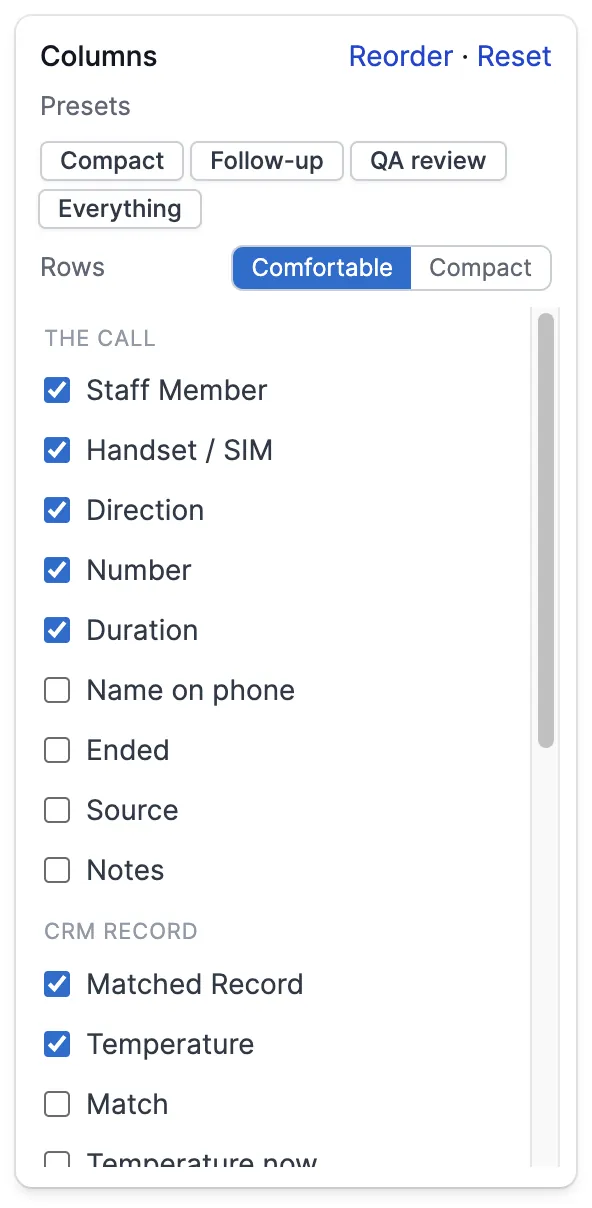
- Tick or untick any column. Besides the ones above, you can add: name on the phone, when the call ended, source, notes, match status, the record's temperature now, lead status, lead source, record owner, what the call led to, callback, task, sentiment, and how often the recording was listened to.
- Presets switch in a whole set at once: Compact, Follow-up (temperature, lead status, callbacks and tasks), QA review (recording, AI summary, sentiment and listens) and Everything.
- Rows: Compact drops the second line in each cell (the SIM, the recording's size, the summary) for a denser list.
- Reorder lets you drag the visible columns into any order. The date stays first and the row actions last.
- Reset goes back to the standard columns.
Deleting calls
Hovering a row reveals Delete, which removes that one call together with its recording, its transcript and its playback history.
For more than one, tick the boxes down the left of the table and press Bulk Actions in the toolbar above it, next to Export. Tick Mass Delete, confirm, and the selected calls go the same way. The box in the header row ticks everything on the page you are looking at - the page, not the whole result set, so a filtered list of four hundred calls does not disappear behind one click.
The checkboxes and the Bulk Actions button only appear for staff who can delete calls, and a rep who only sees their own calls can only delete their own - the server checks again on every id it is sent, so nothing here can be used to reach somebody else's call. There is no undo. Clearing the whole log rather than a selection is a separate control, in Setup → Settings → Call Manager, and it is open only to staff who can see every rep's calls.
5. How a call finds its record
Every phone number anywhere in your CRM - on leads, customers, contacts, staff and any phone custom field - is mirrored into a reverse-lookup index. The CRM's own create, update and delete hooks keep it current, so adding a phone number to a lead updates the index in the same breath.
A call is matched on the subscriber digits rather than the whole number. The module reads
the dialling code out of the CRM's own country table, strips it, and matches on what is
left. That is why +91 98450 12345, 098450 12345 and
98450 12345 all find the same lead, and why the matching is not shaped around
any one country's number length.
Call a prospect on Monday, create the lead on Wednesday, and Monday's calls attach themselves to it. You do not have to create the record first for the history to exist.
When a number could plausibly be two different records, the module does not guess. It puts the call on a Needs review list and waits for a person to say which.
6. The unmapped queue
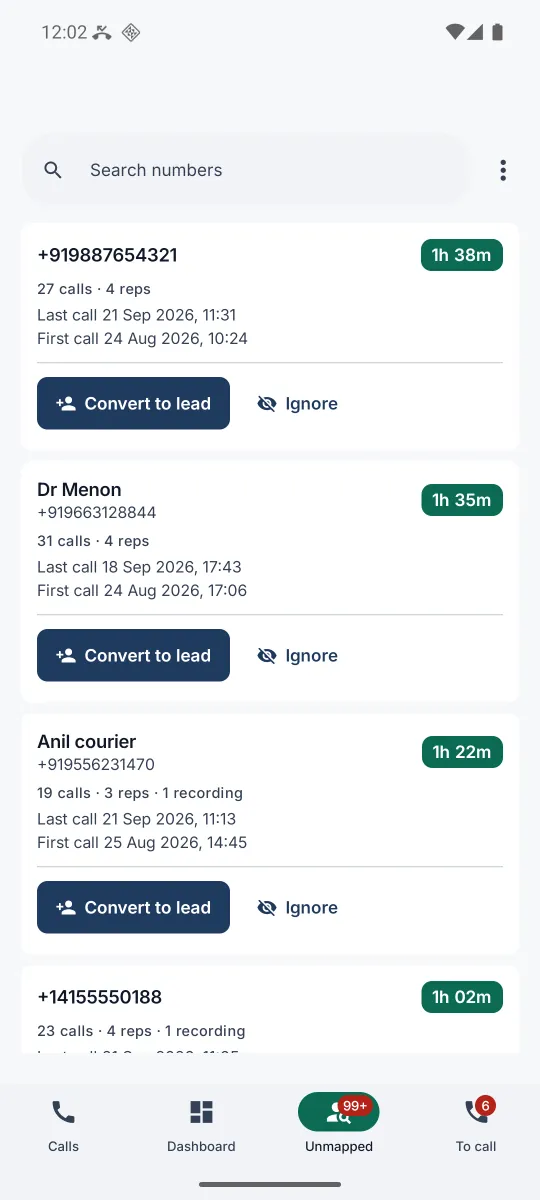
This is the part that earns its keep. Calls to numbers the CRM has never heard of are not noise to be filtered away - they are the prospects nobody has written down yet.
Call Manager → Unmapped groups them by number rather than by call, so five conversations with one stranger read as one prospect, and sorts them by total talk time. The longest conversations float to the top, because a number your team has spent an hour and a half on is worth more than one they rang once.
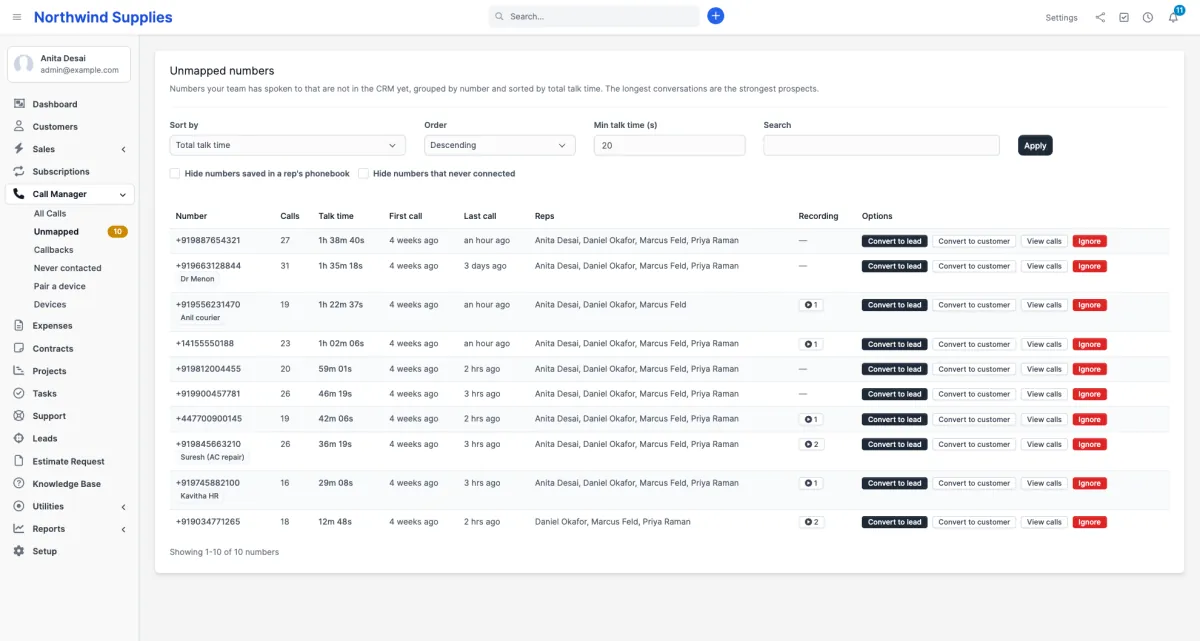
The two checkboxes at the top are the noise filter. Hide numbers saved in a rep's phonebook drops the ones the handset already had a name for, which is usually the dentist and the courier. Hide numbers that never connected drops the ones that only ever rang out. The Min talk time box does the rest.
When a row is worth keeping, convert it in one step. The calls follow it into the new record.
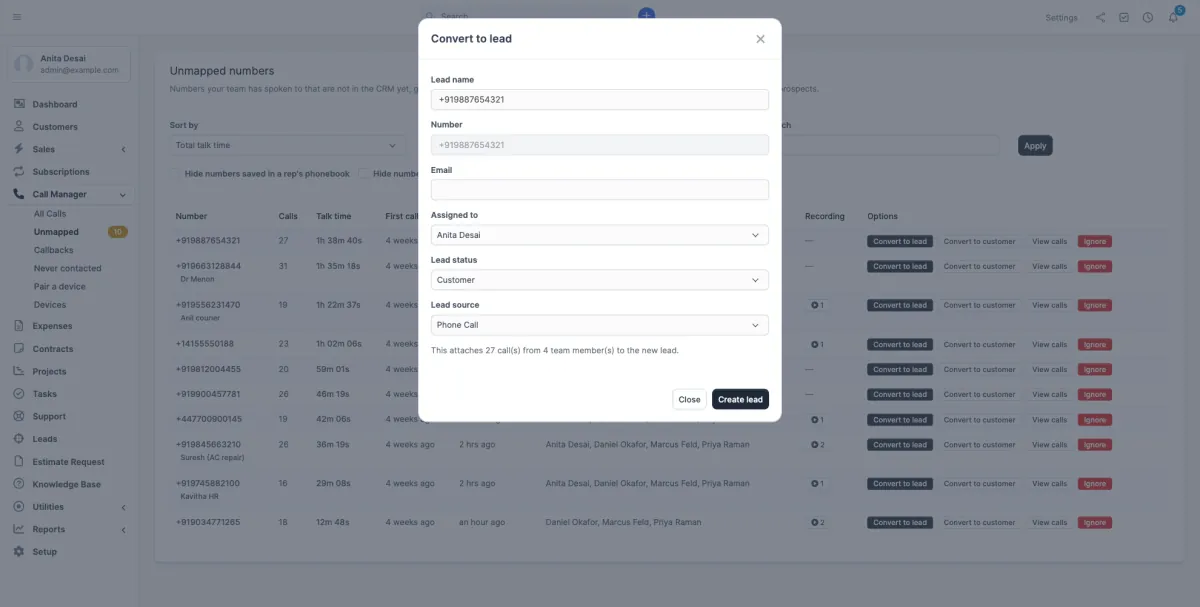
Numbers that are genuinely not business can be ignored, which takes them out of the queue without deleting the calls.
The queue is paged. Under it, a menu picks 10, 25, 50 or 100 numbers per page, and the size you pick is remembered. View calls on a row opens every call and recording with that number. When there are more than ten, each list has its own pager.
7. Leads nobody has called
The mirror image of the unmapped queue. These are open leads sitting in your CRM with not a single call against them, oldest first, because age is the whole signal.

8. On the lead and customer
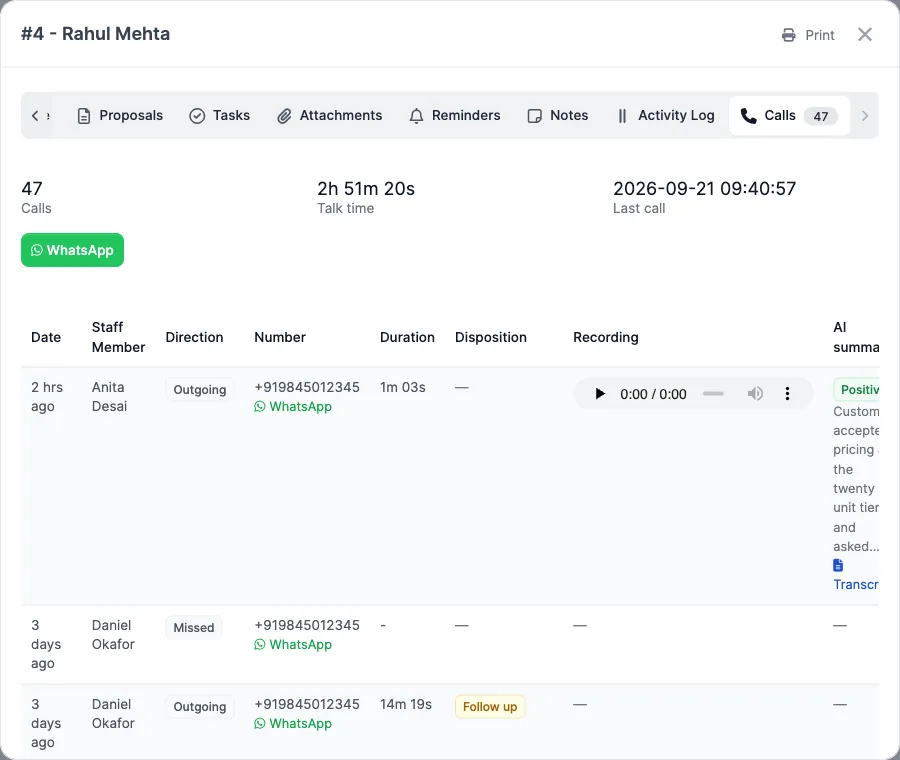
Reps do not live in the Call Manager menu; they live on the record. So every lead and every customer gains a Calls tab, with that record's whole history in it. A customer's tab also includes calls filed against any of its contacts. A number that belongs to a contact is matched to the contact rather than to the company, so without them most of a customer's calls, and their recordings, would be missing from its tab.
A long history is shown a page at a time, with a pager under the table. The menu beside it sets how many calls a page holds: 10, 25, 50, 100 or All, plus the CRM's own table page size from Setup → Settings → Misc, which is also where it starts. Changing page does not close the lead. The three numbers at the top always count every call, not just the page, and the size you pick is remembered for the next lead or customer you open.
9. The dashboard widget
The first thing anyone sees after logging in. Today's numbers, a fortnight of context, and two links into the work.
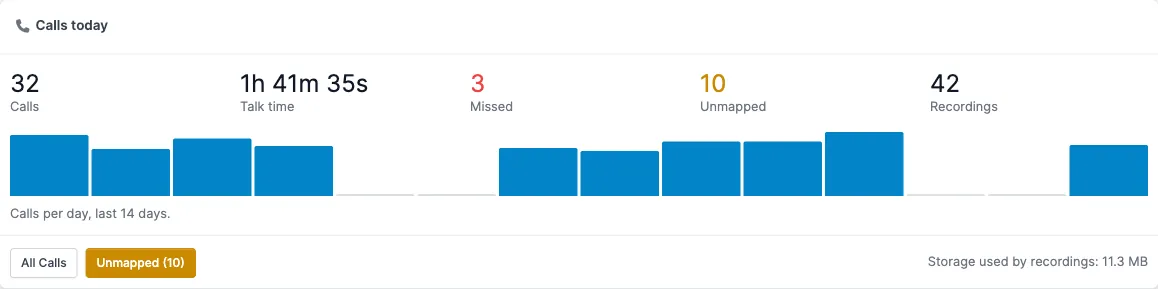
Underneath, the widget shows how today is going against the daily targets. A rep sees three meters for their own day: calls handled, talk minutes and outcome points, each ticked once it is met. A manager sees the team's points so far today and how many reps are on target. Either way, an amber line counts today's conversations that still have no outcome and opens the list of them. The section only appears once there is something to show: a target set, or a conversation waiting for its outcome.
10. Reports
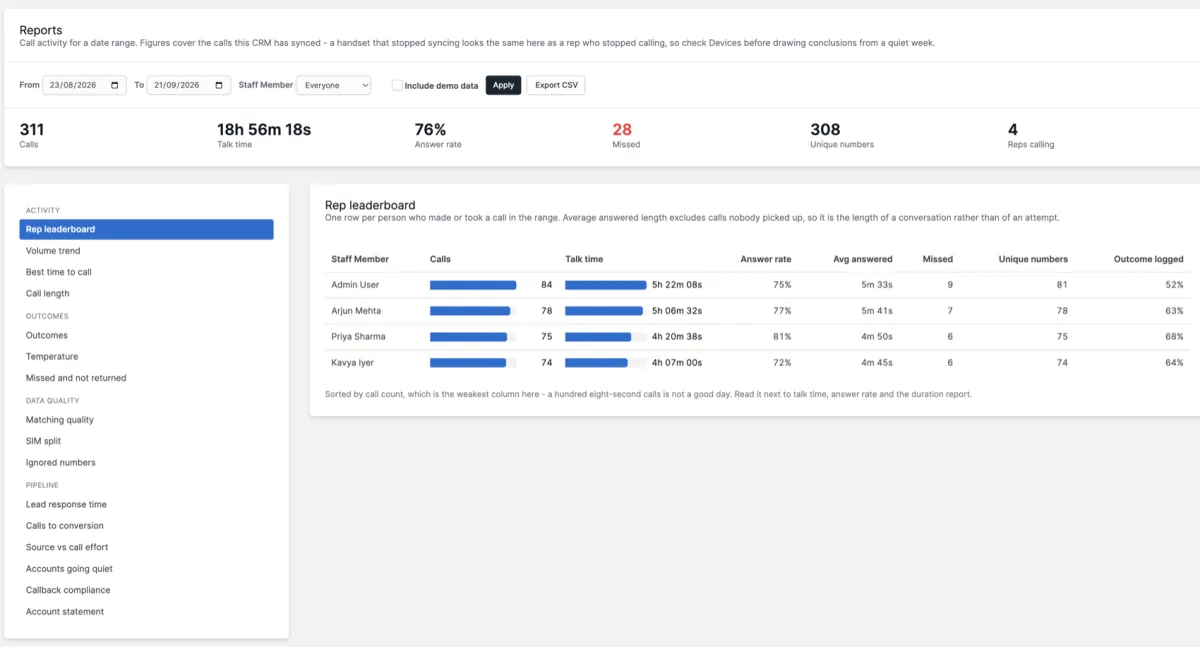
Call Manager → Reports is the widget's numbers with a date range on them, and nineteen more besides. Twenty reports in five groups: what the calling time produced, what the team did, what came of it, whether the data underneath is worth trusting, and how calls line up against leads and customers.
One report at a time, chosen from the list on the left. That is deliberate – stacking twenty of them on one page would make every visit wait for nineteen reports nobody wanted – and it means each report is its own web address. Pick a date range, pick a report, send somebody the link and they see exactly what you saw.
What is in each group
| Report | The question it answers |
|---|---|
| Productivity – what the calling time produced | |
| Productivity | Outcome points, points per talk-hour, and each rep's talk time split into productive, neutral, wasted and no outcome. Below it, the conversations nobody has filed an outcome for, which you can file from the list. See below. |
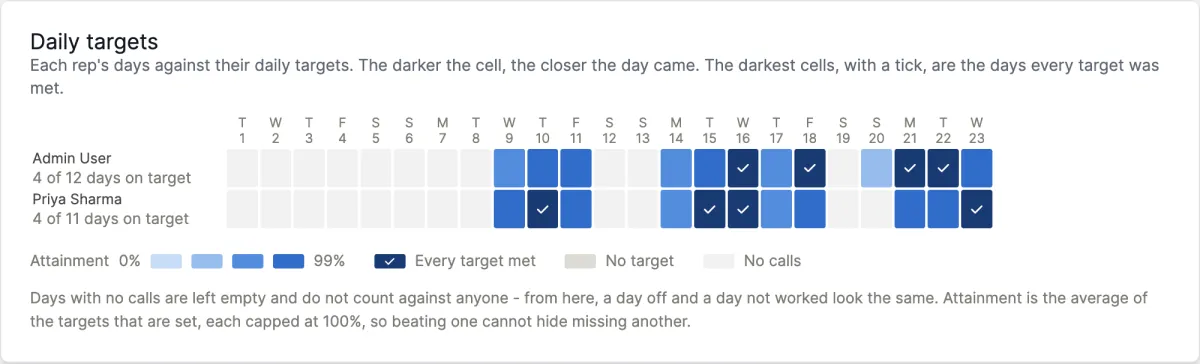
| Daily targets | Every rep's days against their daily targets, as a grid: the darker the cell, the closer the day came, and a tick means every target was met. |
| Daily summaries | One note per rep per day, written each morning about the day before: the day's figures, callbacks kept and missed, and an AI paragraph on what the day was about. Can be emailed. See below. |
| Outcomes and ROI | What happened to the accounts after the calls – statuses reached, proposals, estimates, conversions and payments – credited to the call before them, with cost and return once you set an hourly cost. See below. |
| Activity – what the team did | |
| Rep leaderboard | Calls, talk time, answer rate and average conversation length per person. Sorted by call count, which is the weakest column of the lot – a hundred eight-second calls is not a good day, and the columns beside it are there to say so. |
| Volume trend | Calls and talk time by day, week or month. Two separate strips rather than one chart with two scales, because calls and seconds share no unit. |
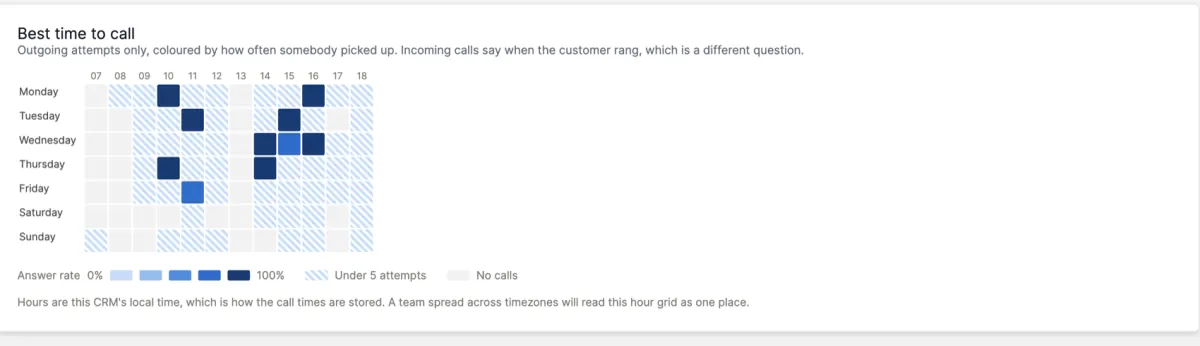
| Best time to call | Hour of the day against day of the week, coloured by how often somebody picked up. Nothing else in the CRM knows what time of day anything was attempted. |
| Call length | How long calls actually last, per rep, in five bands. An average hides what this shows. |
| Outcomes – what came of it | |
| Outcomes | Calls by the disposition the rep recorded, using your own list. The no outcome recorded row is kept and counted, because in the first month it is usually the biggest one. |
| Temperature | The hot / warm / cold mix, plus every record somebody marked hot and then left alone. |
| Missed and not returned | Missed calls with no later outgoing call to the same number. The one report on this page that is a to-do list. |
| Data quality – whether to trust the rest | |
| Matching quality | How much of the period found the lead or customer it belongs to, and how long the rest waited for somebody to sort it out. Read this one first; see the warning below. |
| SIM split | Which card each rep is calling from. A customer called from a personal number is a customer the company cannot reach once that rep leaves. |
| Ignored numbers | What the unmapped queue is filtering out, and how fast that list is growing. |
| Pipeline – calls against leads and customers | |
| Lead response time | How long each new lead waited for its first call, banded from under five minutes to never called, with the slowest listed so they can be worked today. |
| Calls to conversion | Calls, talk time and days behind every lead that converted, and what the customer it became has been invoiced since. |
| Source vs call effort | Which lead sources are worth a rep's hour. A budget question, answered with call data. |
| Accounts going quiet | Leads and customers by how long since anyone called them. The sibling of section 7: not "never", but "went quiet". |
| Callback compliance | What happened to every callback promised – kept, still open, overdue or cancelled – per rep. |
| Account statement | Every call with one lead or customer, in order, with a print layout. For review meetings, and for the conversation that starts with being told you never called back. |
Productivity and daily targets
Activity reports count how much calling happened. These two answer what it produced. They rest on three things you set under Settings → Call Manager (section 22):
- Points per outcome. Each outcome on your list scores a number of points. The defaults are Interested 5, Follow up 2, Not interested 0 and Wrong number -1.
- What counts as a conversation. By default, 30 seconds of talk time. Anything shorter was a ring, a hang-up or a voicemail.
- Daily targets. Calls handled, talk minutes and outcome points per day, for the whole team and, where it differs, for one person.
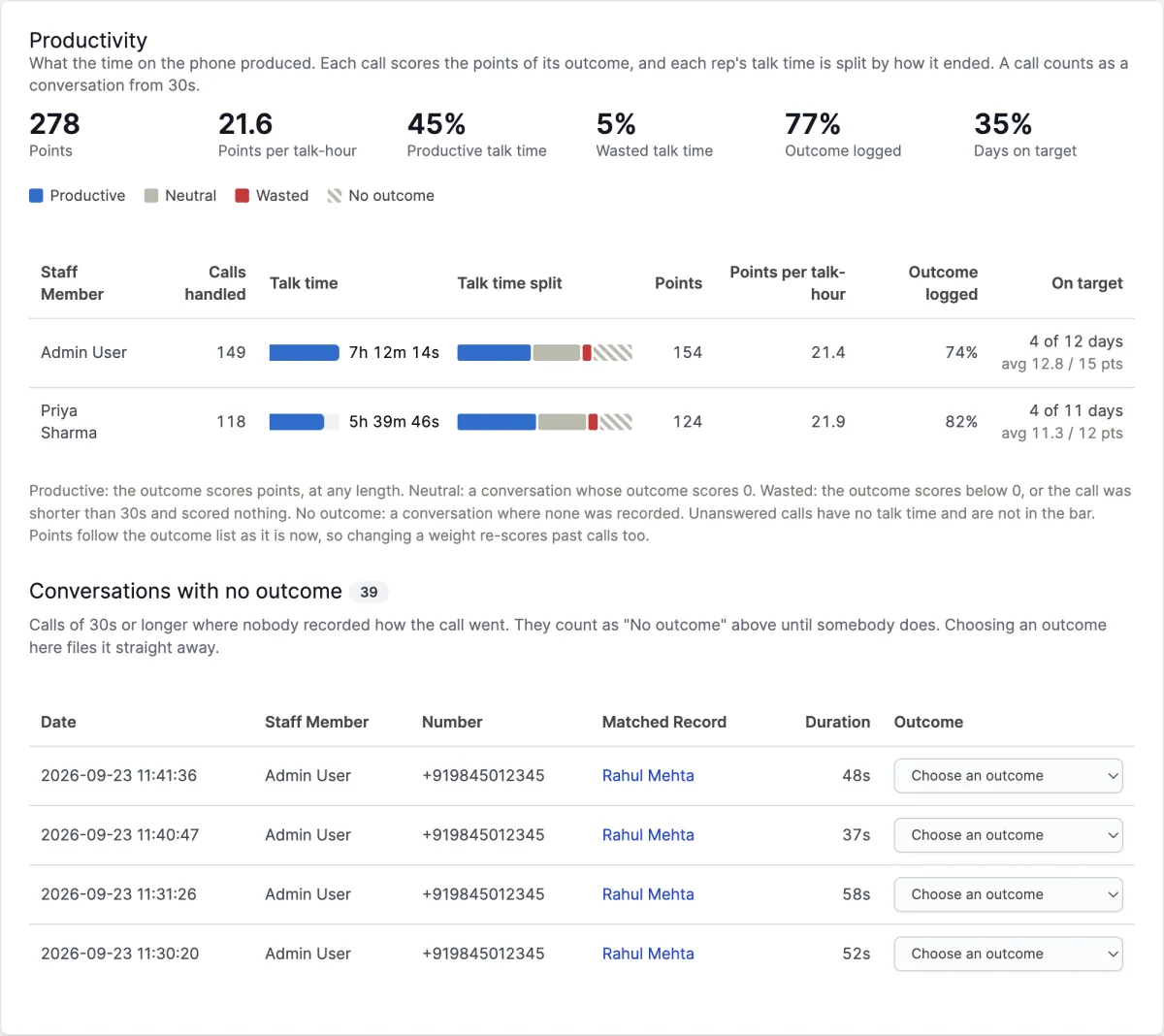
Every minute of talk time then lands in one of four places:
| Class | Which calls |
|---|---|
| Productive | The outcome scores points, however short the call was. |
| Neutral | A conversation whose outcome scores 0, such as Not interested. A real conversation that did not pay off. |
| Wasted | The outcome scores below 0, or the call was shorter than a conversation and scored nothing. |
| No outcome | A conversation nobody filed an outcome for. This is a gap in the records, not a judgment, so it is drawn hatched rather than coloured. |
Calls nobody answered have no talk time, because Android does not report ringing time, so they are counted but not drawn. Points per talk-hour is only shown once a rep has ten minutes of talk time, since a single good two-minute call would otherwise read as 150 points an hour.
Points are worked out from your outcome list as it is now. Change a weight and past calls are re-scored to match, so the report always reflects what you currently think matters.
The Conversations with no outcome list under the Productivity report is where a manager catches up: pick an outcome in the row and it is filed at once, with the same rules the app uses. It is only shown while Flag conversations that have no outcome is on.
Daily targets covers the last 31 days of the range you pick. A day counts as on target when every target that is set was met, and a day with no calls at all is left empty and does not count against anyone. From the CRM, a day off and a day not worked look the same. With a single rep selected, the grid is followed by a day-by-day table. Until any target is set, the grid is shaded by points instead, and says so.
Daily summaries
Every morning, at 07:00 CRM time unless you change it, the module writes one note per rep about the day before. It covers the previous day rather than the day so far, so calls a phone syncs in the evening are included. Each note holds that day's calls handled, conversations, talk time, points and target, the callbacks kept (completed that day) and missed (due that day and still open), and, if you use AI call summaries, one paragraph condensed from that rep's call summaries: what the day was mostly about, what was promised, and what needs following up.
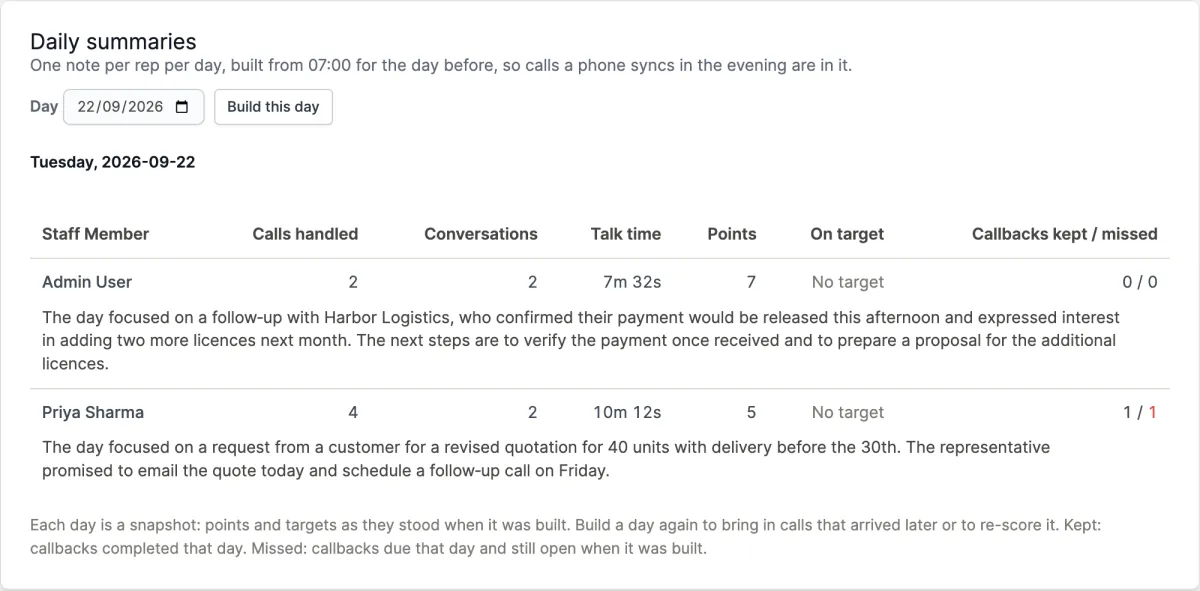
A note is a snapshot. The points and targets are the ones in force when the day was built, so changing an outcome's points later does not rewrite old notes; build the day again if you want it re-scored. Reps with no calls that day get no note.
The AI paragraph is one request to your AI provider per rep per day, billed to your own key. Only the call summaries the provider has already written are sent: no audio and no transcripts. Reps with no summarised calls that day get the figures without a paragraph.
Emailing the summary is off until you switch it on under Settings → Daily summary. It goes to the staff you choose or, if you choose nobody, to everyone who can see all calls, and you can also send each rep their own day. Someone who can only see their own calls only ever receives their own day. The email goes out once the day's AI paragraphs are written, using the CRM's own email settings.
Outcomes and ROI
The other reports stop at the call. This one follows what happened to the account afterwards. As things happen in the CRM, the module records each outcome:
- a lead changing status, being marked lost, or converting to a customer;
- a proposal or an estimate being sent or accepted;
- a payment being recorded.
Each outcome is credited to the last connected call to that lead or customer, or to one of its contacts, in the 7 days before it, whichever rep made the call. With no such call, the outcome is still listed, but nobody is credited with it.
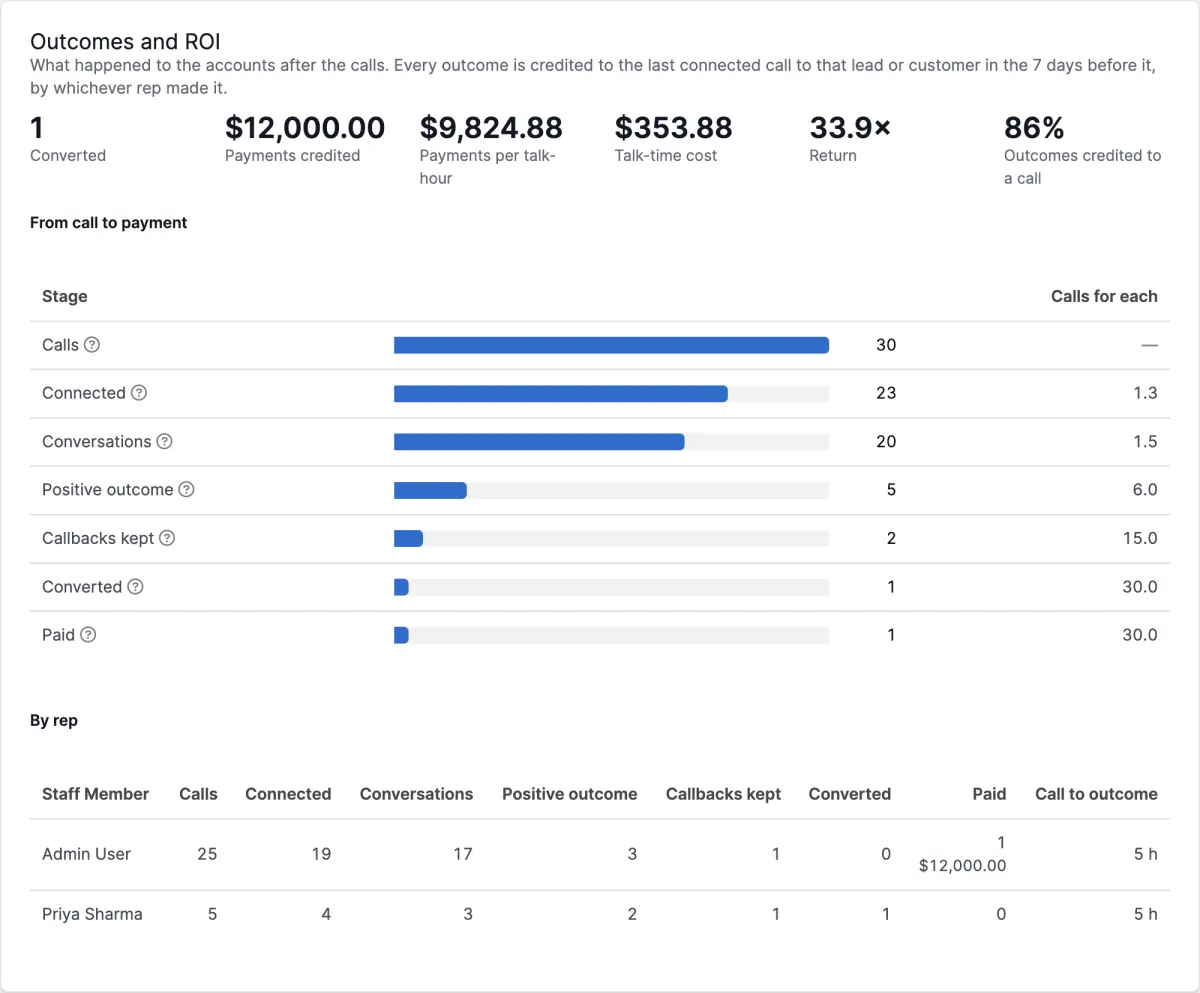
Lead statuses are listed by the status reached. If your team uses statuses such as Demo booked or Meeting held, each one gets its own row, credited like any other outcome.
Cost and return appear once you set an hourly cost, for the whole team or per rep, under Settings → Outcomes and ROI. The report then shows each rep's talk-time cost (talk hours times the hourly cost), cost per conversion, payments per talk-hour and return. Talk-time cost only counts time on the phone, so it is the least those calls cost, not everything the rep costs you. Without a cost, the report shows time and outcomes only.
Upgrading from an earlier version fills in the last 90 days of conversions, lost leads, estimates, accepted proposals and payments from your CRM's own records. They are matched to calls within a few minutes of the upgrade. Status changes and sent proposals start from the upgrade, because the CRM does not keep a history of those.
The report can show that a call came before a payment. It cannot show that the call caused it. A deal also worked by email, WhatsApp or in a meeting still goes to the last call, and a rep whose phone was not syncing gets no credit at all. Treat the figures as a comparison between reps and periods, not as the value of a single call. Estimates only count as accepted when the customer accepts them online, because the CRM gives the module no signal when staff mark one accepted by hand.
Best time to call
Worth its own picture, because it is the report buyers ask for and the one no other part of the CRM can produce.
Everything in the Pipeline group depends on calls being attached to the right lead or customer. If a third of your calls never matched anything, a conversion report built on the other two thirds is wrong for reasons that have nothing to do with conversion. The Matching quality report tells you which situation you are in, and the unmapped queue is where you fix it.
A rep whose handset stopped syncing looks identical here to a rep who stopped calling, and a deal worked over email, WhatsApp and a meeting looks cheaper than it was. Check Devices before reading a quiet week as a performance problem, and treat "calls per conversion" as a comparison between reps and sources rather than as the cost of a sale.
Someone whose permission is View own gets every one of these reports about their own calls and their own leads, and cannot widen that by editing the address bar. See section 24.
11. Recordings
Where the handset's own dialer writes call audio somewhere readable, the app uploads it and the CRM plays it back inline. No download, no separate media library: a play button on the row.
Behind that button there is more going on than there looks:
- Uploads are chunked, 256 KB at a time. Shared hosting routinely caps uploads at two to eight megabytes, and a half-hour call is bigger than that. Chunking is what makes long calls arrive at all. The chunk is deliberately small: the limit that decides whether an upload is accepted is usually the web server in front of PHP, not PHP's own setting, and that one rejects a large request body before the module can see it or report why.
- Every upload carries a SHA-256 checksum that the server verifies before it stores anything. A chunked upload that silently lost a piece is otherwise indistinguishable from a good one.
- An interrupted upload resumes from where it stopped rather than starting over.
- Playback is audited: who listened to which recording, when, and from what address. The log is read in Setup → Settings → Call Manager, and is kept on its own retention clock - see section 22.
- A recording is matched to its call by when the file was written and how long the audio runs, and each call takes one recording. Two calls that end within a couple of minutes of each other cannot be separated by the clock alone, and the length is what settles it - seven seconds of audio did not come from a thirty-second call.
Versions before 1.0.5 could put one call's audio on another call and leave the first with none. The matching is fixed going forward, and any file still waiting on the handset is re-matched on its next sweep - but a recording the server has already stored against a call stays there, because that is the call it is filed under. Delete that recording on the call in the CRM and the handset sends the correct file on its next sweep.
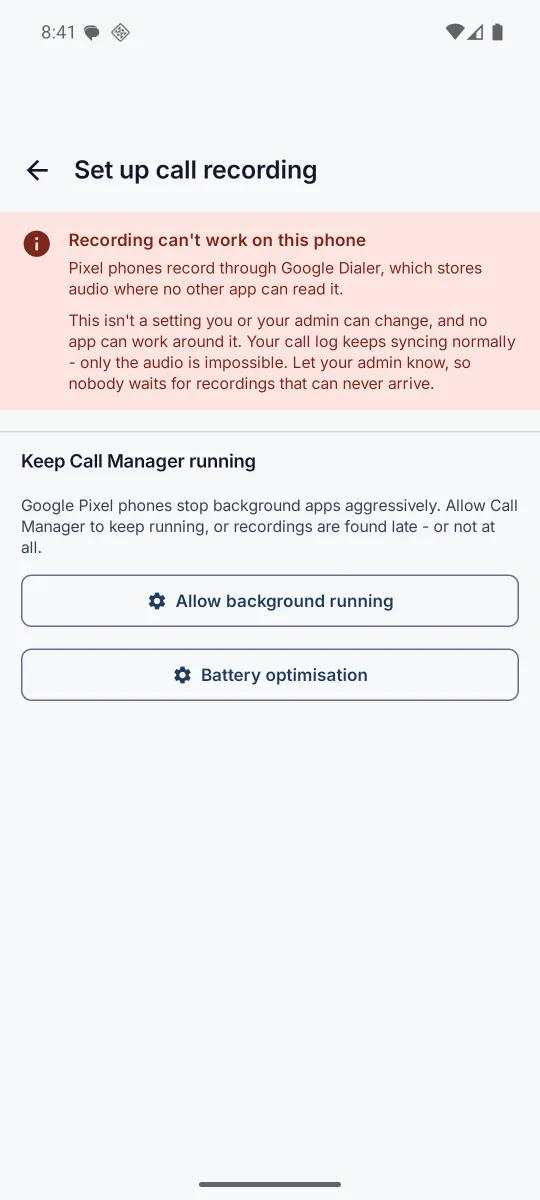
It depends entirely on the handset's own dialer writing the audio where another app is allowed to read it. Samsung, Xiaomi, vivo, OPPO and realme generally do. Google Pixel, most Motorola and OnePlus never will, because they record through Google Dialer into storage that no permission grants access to. Call logs still sync perfectly on those phones; only the audio is impossible. The manual's section 2 has the full table, and the app says so on the handset itself rather than capturing nothing in silence.
12. AI call summaries
Because this module holds real recordings, it can do this at all. Stored recordings are transcribed on the CRM's own cron, and the call gains a sentiment badge, a one-line summary and the full transcript.
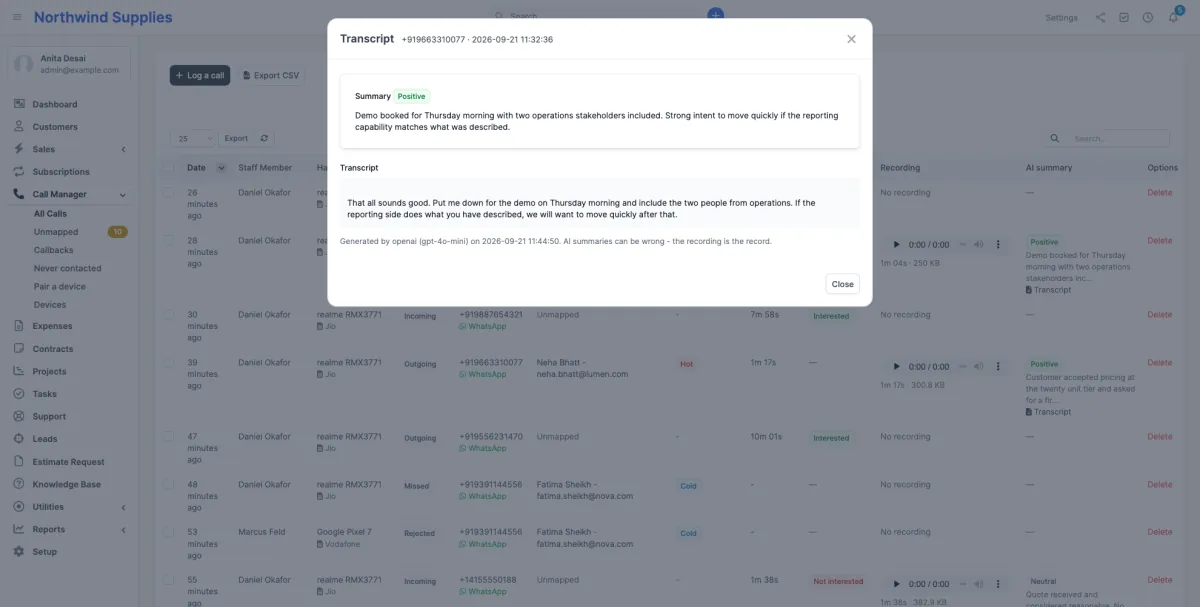
It is marked beta, and it is bring your own key. Choose OpenAI, Groq or Google Gemini, paste your own API key, and that provider bills you directly. Nothing is charged by this module and nothing is routed through anyone else's servers. Until a key is saved the feature is inert.
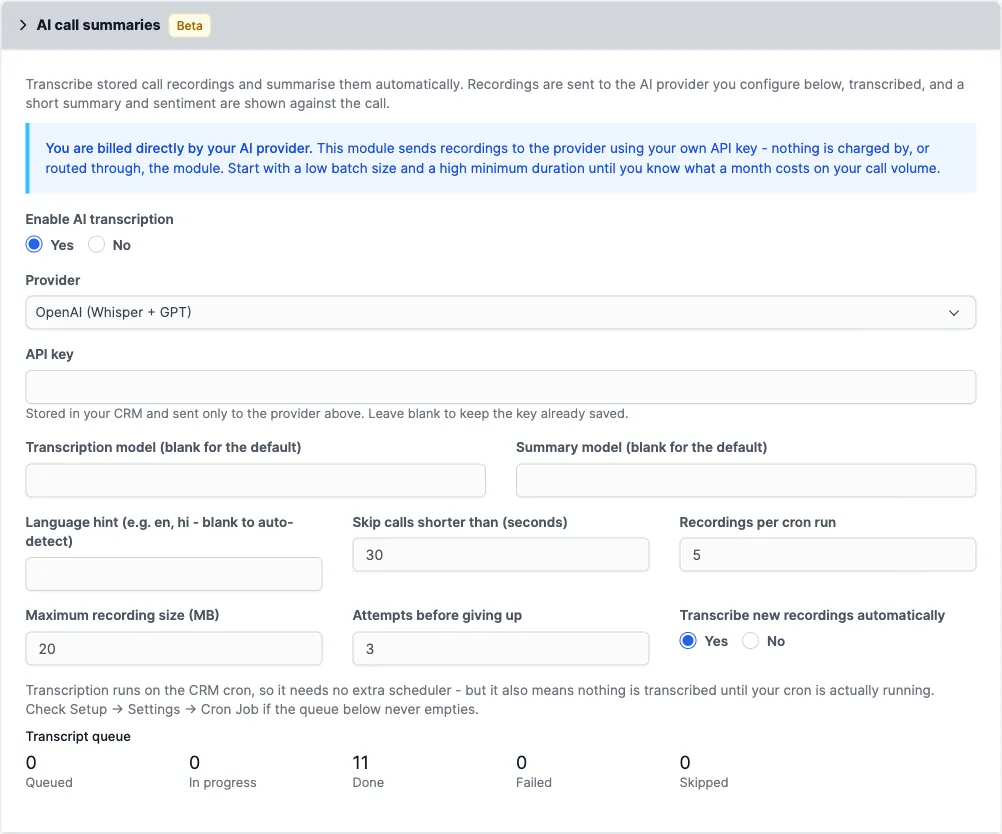
The three providers are not three interchangeable logos. They differ in price and in what they do with a file, and the module shows that difference rather than smoothing it over:
| Provider | Default models | What to know |
|---|---|---|
| OpenAI | whisper-1gpt-4o-mini |
The key many buyers already have. Transcription and summary are two calls, and a summary that fails still leaves the transcript stored. |
| Groq | whisper-large-v3-turboopenai/gpt-oss-120b |
The same open Whisper models, served at roughly a tenth of OpenAI's per-minute
price. On a fleet of recordings that is the difference between a feature that stays
on and one that gets switched off in month two. whisper-large-v3 can be
typed into the transcription field when accuracy matters more than cost. |
| Google Gemini | gemini-2.0-flash |
One multimodal call - audio, summary and sentiment together. Audio travels inline in the request, which is capped at 20 MB, so a recording above that is refused by name and the file-size setting matters more here than elsewhere. |
Model names belong to their provider: whisper-1 is not a Groq model and
whisper-large-v3-turbo is not an OpenAI one. Leave both model fields blank and
the defaults above apply. If you switch provider after typing names into them, clear the
fields too - a name the new provider does not know is a failed transcription with a
confusing error, not a fallback to a default.
Call language. Type the language your calls are in: ta for
Tamil, hi for Hindi. For calls that mix two, type both, for example ta, en.
Names work too: Tamil & English is saved as ta, en. Leave the field
blank to auto-detect. Whisper detects the language from the first 30 seconds and uses it for
the whole call, so on mixed calls it is worth naming both.
- OpenAI and Groq accept only one language per request. The module sends the one English is mixed into. For Hindi, Tamil, Telugu, Kannada, Malayalam, Marathi, Bengali, Gujarati, Punjabi and Urdu mixed with English, it also sends a one-line sample of that mix, which nudges Whisper to keep English words in English letters rather than the native script.
- Gemini is told which languages the call mixes and to transcribe each word in the language it was spoken, without translating.
A word that is not a language is refused when you save, and the previous value is kept. Whisper fails every transcription on a language it does not know, so a typo here would otherwise fill the queue with failures.
When the retention period expires and a recording is purged, its transcript goes with it - a verbatim transcript is the recording in another form. The three-sentence summary stays, because a note of what was agreed is an ordinary business record.
13. WhatsApp follow-up
In a great many markets WhatsApp is the follow-up channel. So there is a WhatsApp button on the call list, on the Calls tab of every lead and customer, and on the post-call prompt on the handset. It opens WhatsApp with the message already typed. The rep presses send.
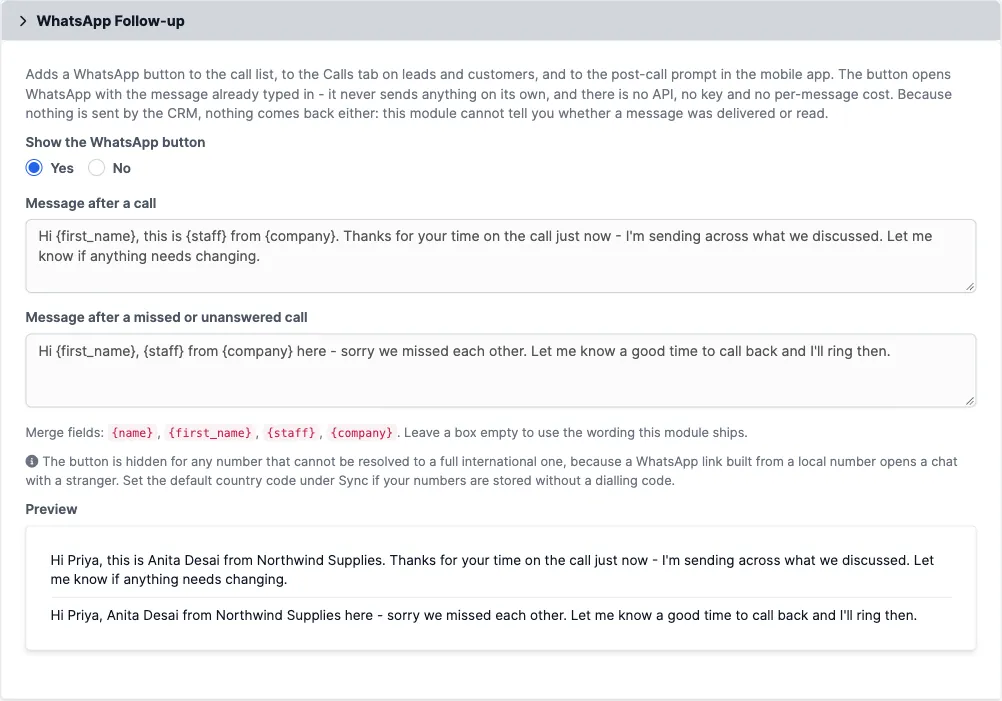
{name}, {first_name}, {staff} and
{company} are filled in per call, and the preview underneath shows the real
wording as you type. The app is sent the same templates, so a customer is greeted
identically whichever end the rep is working from.
The "sorry we missed each other" template is offered automatically after any call where nobody spoke: a missed call, an outgoing one that rang out, a call rejected on the move.
There is no API, no key and no per-message cost, because the button is only a link that
opens WhatsApp. It also means nothing comes back: this module cannot tell you whether a
message was delivered or read, and will not be able to without the paid WhatsApp Cloud
API. Two deliberate refusals follow from the same honesty. No button is drawn for a number
that cannot be resolved to full international form, because a wa.me link
built from a local number opens a chat with a stranger. And a lead converted from the
unmapped queue without a name is greeted "Hi," rather than "Hi +919000000000,".
14. Callbacks
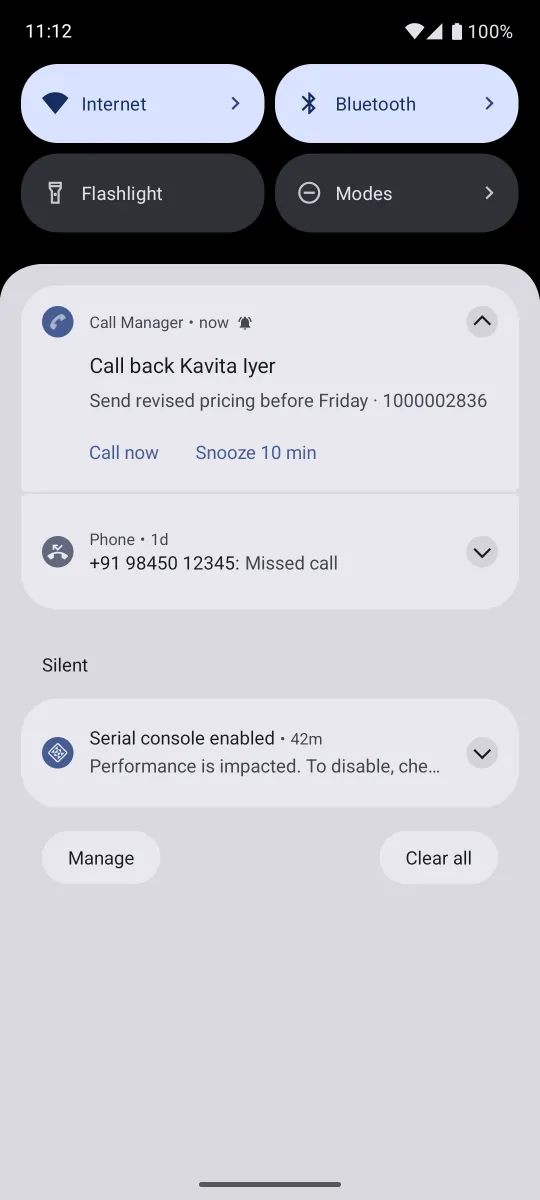
A callback is a promise to ring someone back, and it rides the CRM's own reminders. That means it shows up in the calendar and in the notification cron like any other reminder, with completed and cancelled states this module adds on top.
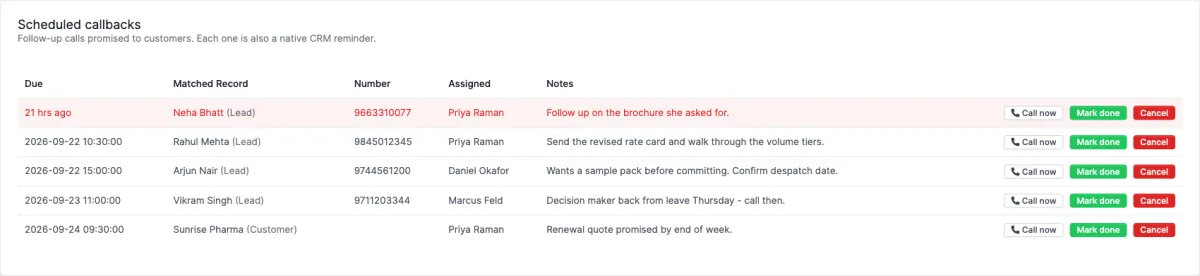
On the phone, a callback rings when it falls due. The CRM's own reminder is an email or a bell in a browser tab, and neither is where the call gets made. The app sets an alarm for each upcoming callback assigned to the rep, and follows the list: a callback finished or moved in the CRM stops ringing, and a reboot sets them all again. A manager's phone rings only for their own callbacks, never the team's.
15. Turning a call into a task
A call is evidence that something happened. A task is a promise that something will. The Task link on every row turns the first into the second: it opens a small dialog with everything already filled in, and one more click creates an ordinary Perfex task.
The subject is Follow up — {name}, using the name the matcher resolved. The due date is the call's own date plus however many days you set in the settings, and never a date in the past - working through a week-old backlog does not create tasks that are born overdue. The assignee is the rep whose call it was, because they had the conversation, and the picker lets you hand it to somebody else. All four are editable before you press Create.
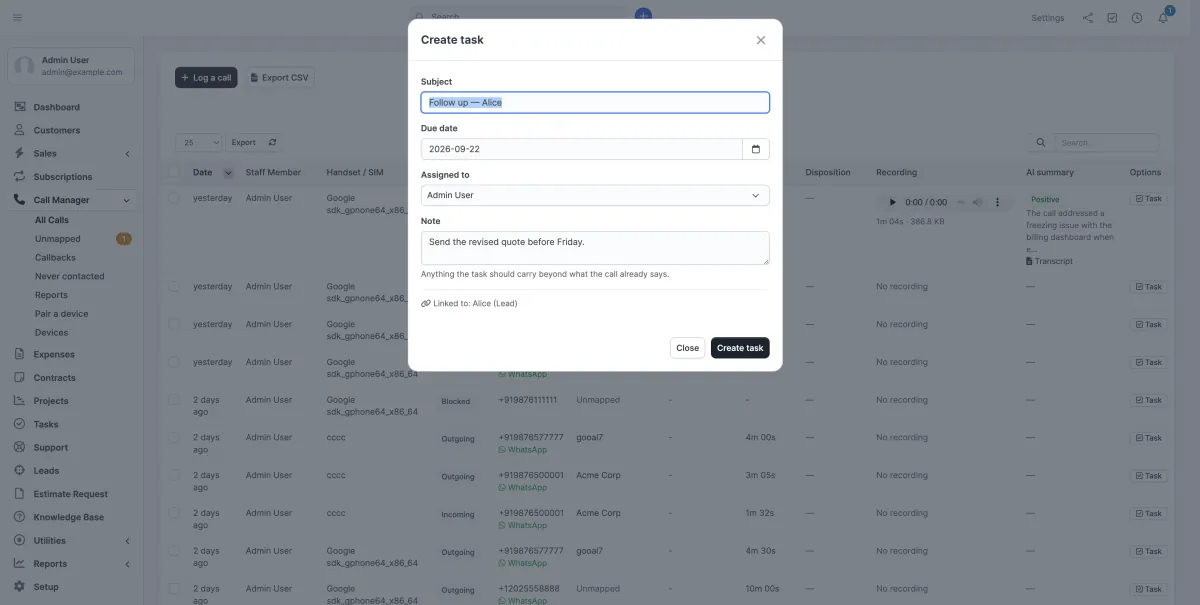
The button sits in the call list and on the Calls tab of every lead and customer - the place where the instinct usually strikes, reading an account's history and noticing a conversation nobody followed up. The row updates in place, so a list you had filtered, sorted and paged stays exactly where it was.
Once a call has a task the button gives way to a green Task created that opens it. Hovering the row reveals the rest - New task, for the second follow-up after a second conversation, and Delete.
And on the handset. The same button is on the app's call screen, under WhatsApp - so a rep who has just put the phone down can file the follow-up without opening a laptop. The app does not decide anything for itself: the subject and the due date are the ones the CRM worked out, sent with the call, so both ends propose the same task.
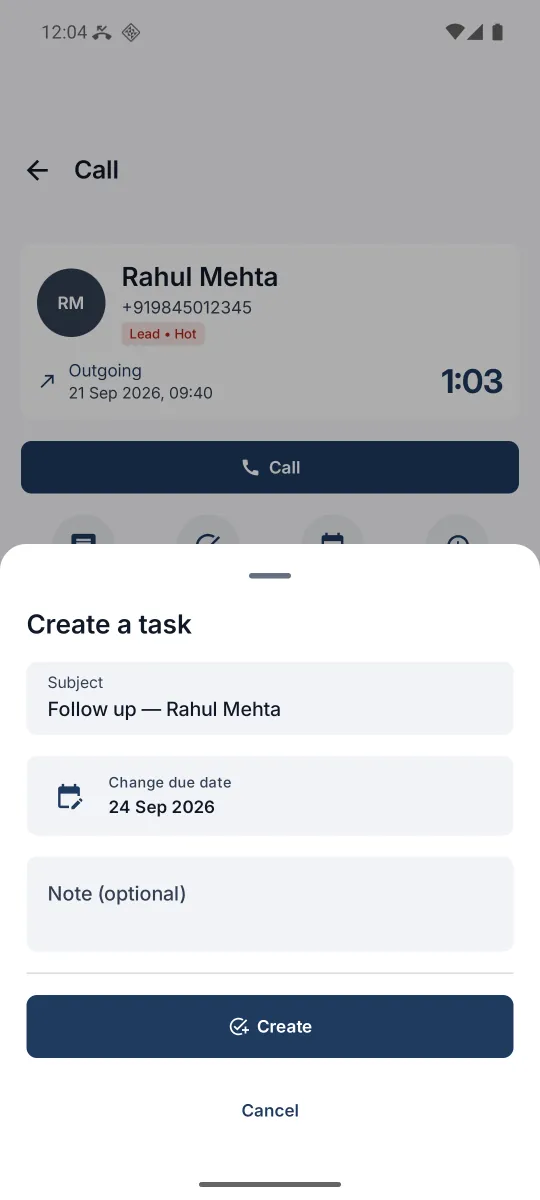
It is created through the CRM's own task model, so it appears in Tasks, shows on the lead or customer it belongs to, emails its assignee, and counts in the CRM's own reports exactly as a task typed in by hand does. The task body carries what the call was - direction, time, number, outcome - so that a week later it still explains itself. The only thing this module adds is the link back to the call it came from, which is what lets the row say Task created instead of offering the same task twice.
A call matched to a contact produces a task on that contact's customer: Perfex tasks have no contact relation, and the account is where work belongs anyway - the contact is still named in the subject, and the dialog says so before you press the button. A call that is not matched to anything still gets its task; it simply stands on its own, which is the right answer for a rep who has just spoken to a number nobody has filed yet.
The switch in Settings → Tasks from calls decides whether Call Manager offers the control at all. Each staff member also needs the CRM's own Tasks → Create permission, granted under Setup → Staff → Roles. That second one is deliberately not this module's to grant: a task created here is an ordinary task, so the question "may this person create tasks" already has an answer, and a module that accepted its own answer instead would be handing out a permission the CRM had refused.
A task deleted in the CRM releases its call: the row offers a fresh task rather than pointing at something that is no longer there. A call can be tasked more than once - a second conversation is an ordinary reason to want a second follow-up - so a row that already has one still offers New task beside it.
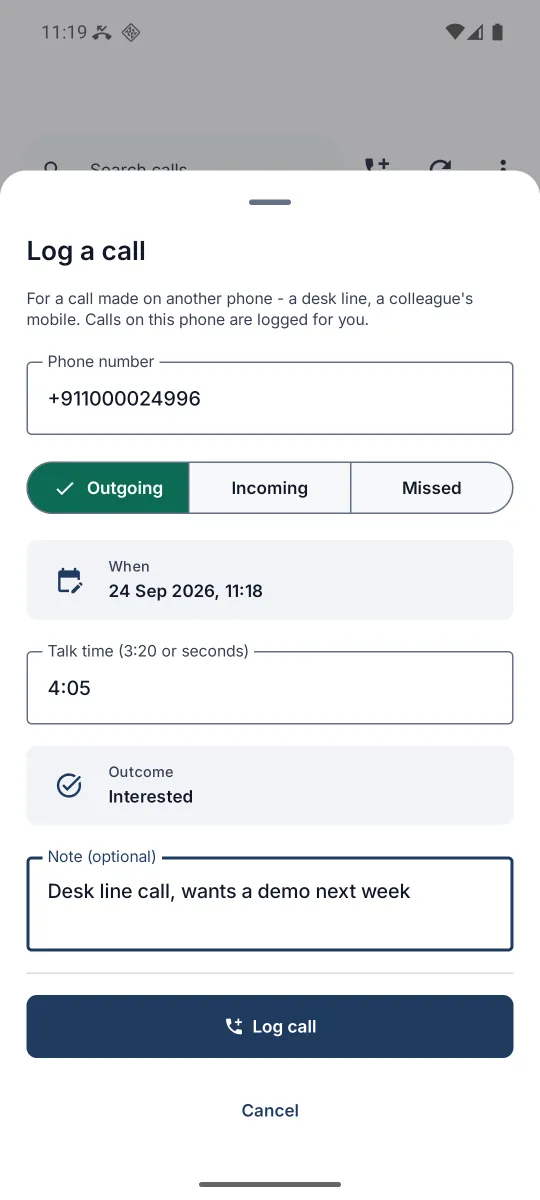
16. Logging a call by hand
Not every call comes off a phone with the app on it. Desk phones, a rep whose handset is being replaced, a conversation from before you bought this - all of it can be entered directly, and once entered it is matched, written back and counted exactly like a synced call.
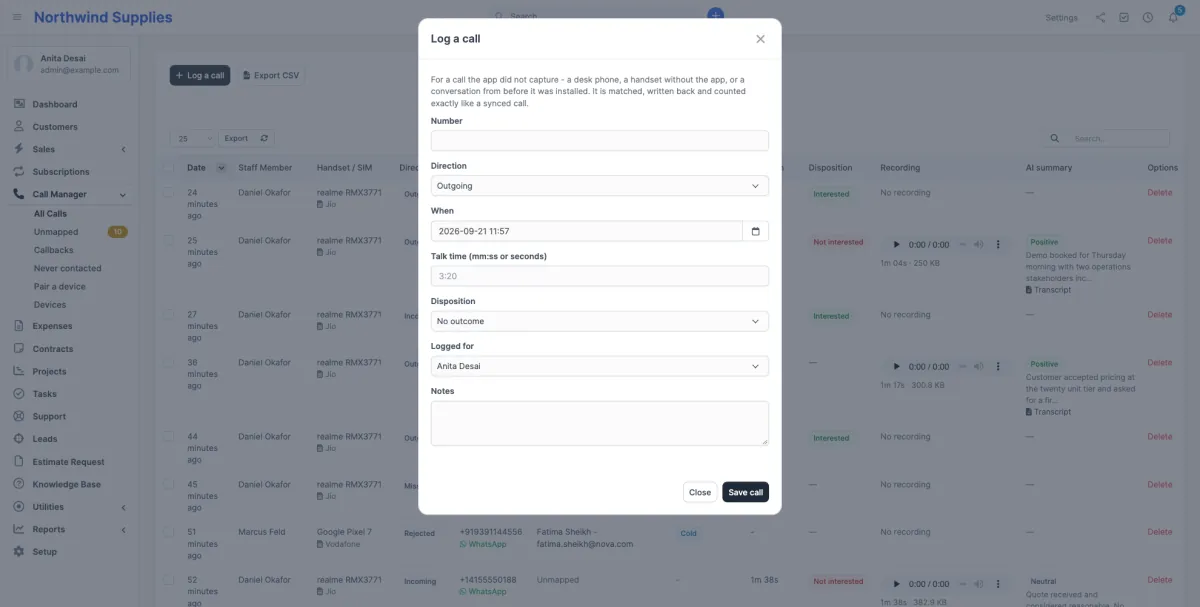
3:20 or a plain number of seconds. "Logged for" lets a manager file a call on
behalf of a rep.
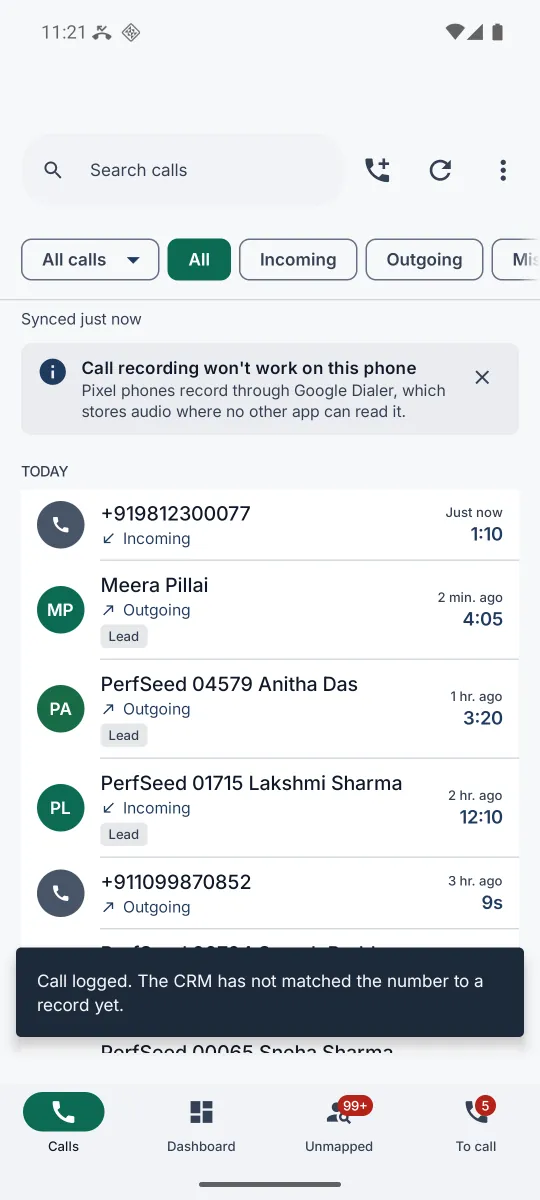
The same dialog is on the phone, behind the phone-with-a-plus button at
the top of the app's Calls tab: number, outgoing, incoming or missed, when, talk time,
outcome and a note. It goes through the same insert and the same matcher, and the rep is
told where the call was filed. It is for calls made on another phone; calls on the rep's
own phone are logged for them. Like the button in the CRM, it needs the
create capability, and it always logs the call as the rep's own.
17. CSV export
Export CSV, at the top right of All Calls, downloads every call the current filters and search match, streamed from the server. That last part matters: it is not the page your browser happens to be holding, it is every row your filters match. Clear the filters first for the whole history. Export links bookmarked before version 1.2.0 still work.
18. The app, screen by screen
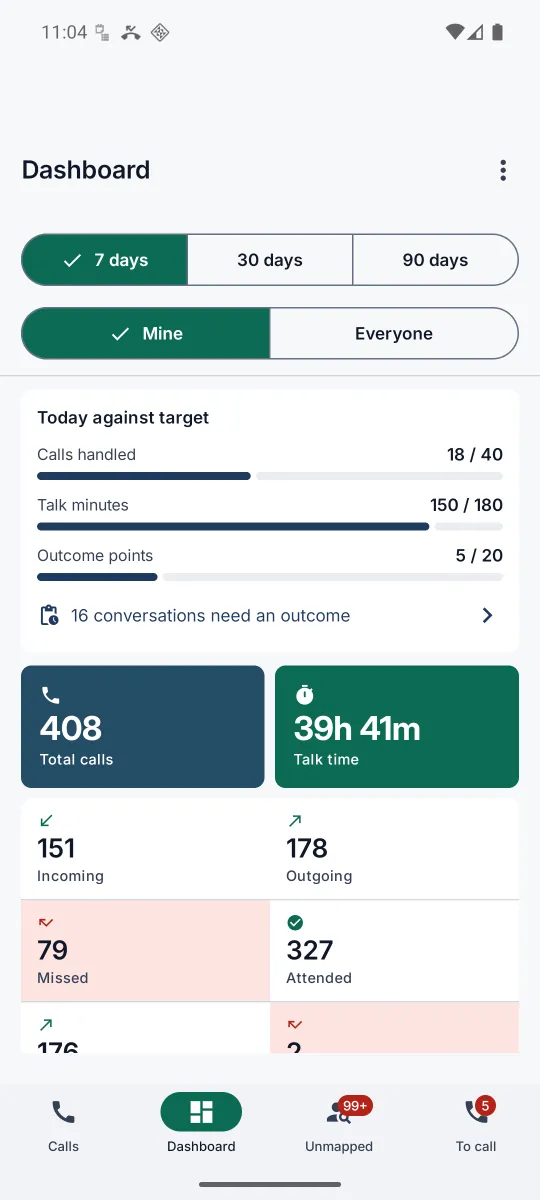
Four tabs along the bottom, and everything a rep needs is on one of them: Calls, Dashboard, Unmapped and To call.
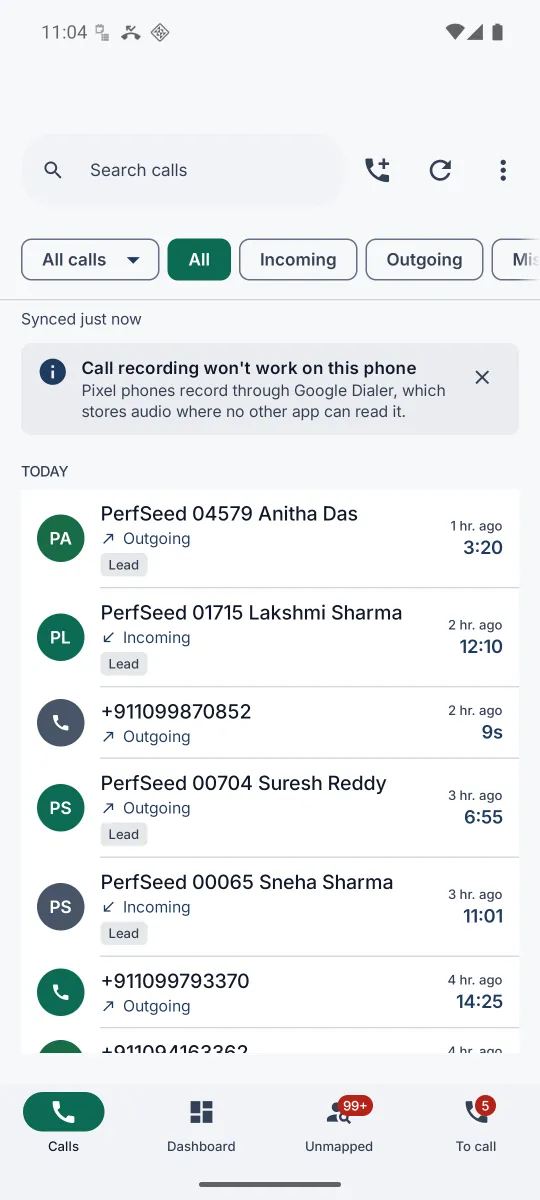
Quick views. The same chip also offers two of the CRM's quick views, Missed, not called back and No outcome, with the filters the All Calls page uses, so the phone and the CRM list the same calls.
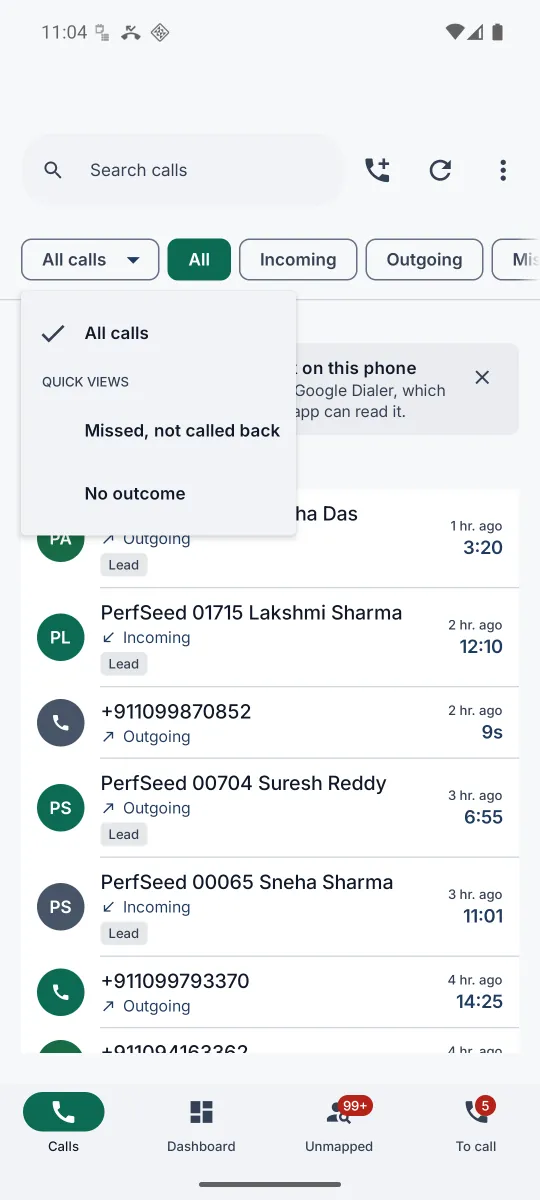
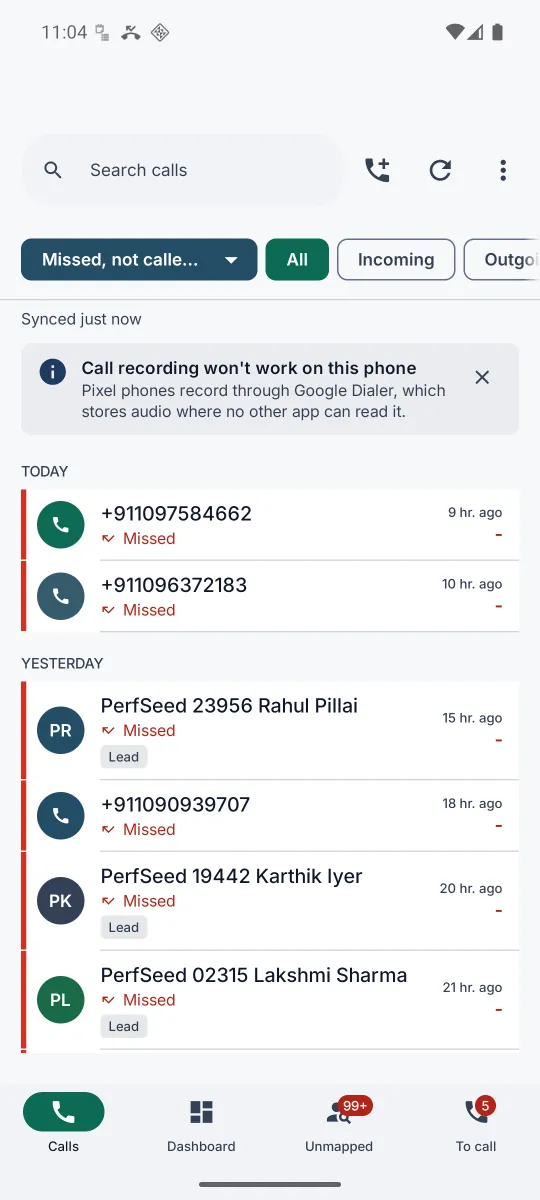
Today against target. The top of the Dashboard is the CRM's dashboard widget on the phone: calls handled, talk minutes and outcome points, each against the rep's daily target and ticked once met. Someone looking at the whole team sees the team's points and how many reps are on target instead. Below the meters, 16 conversations need an outcome opens exactly those calls in the call list, ready to be filed.
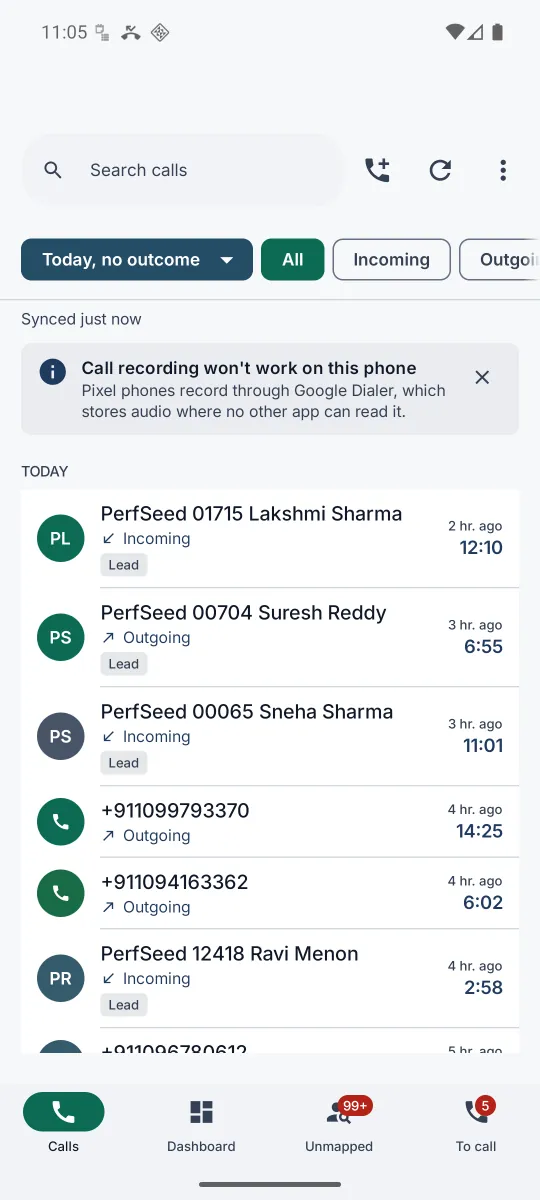
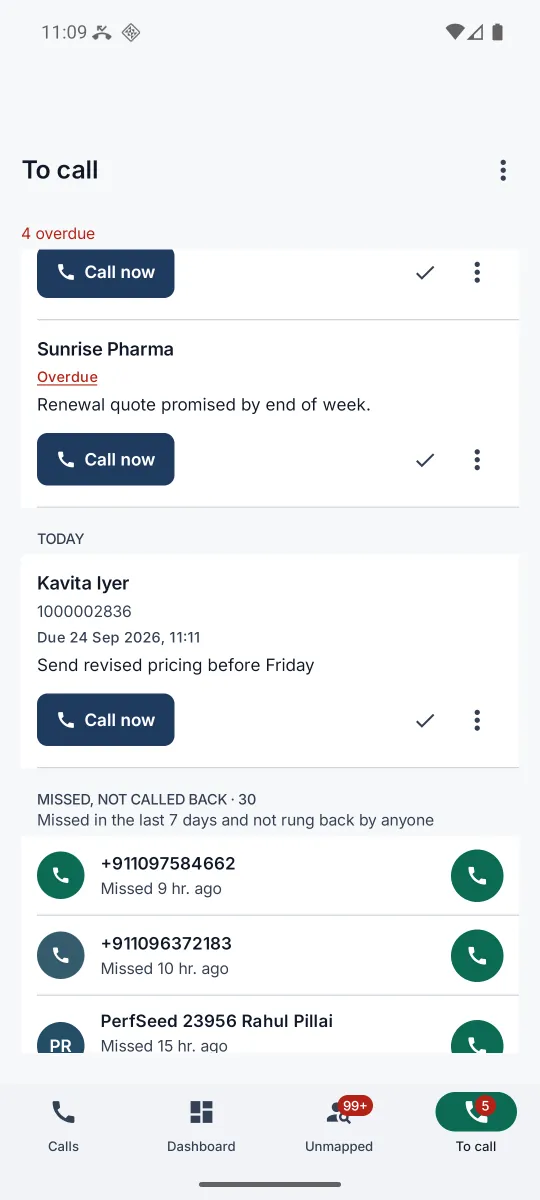
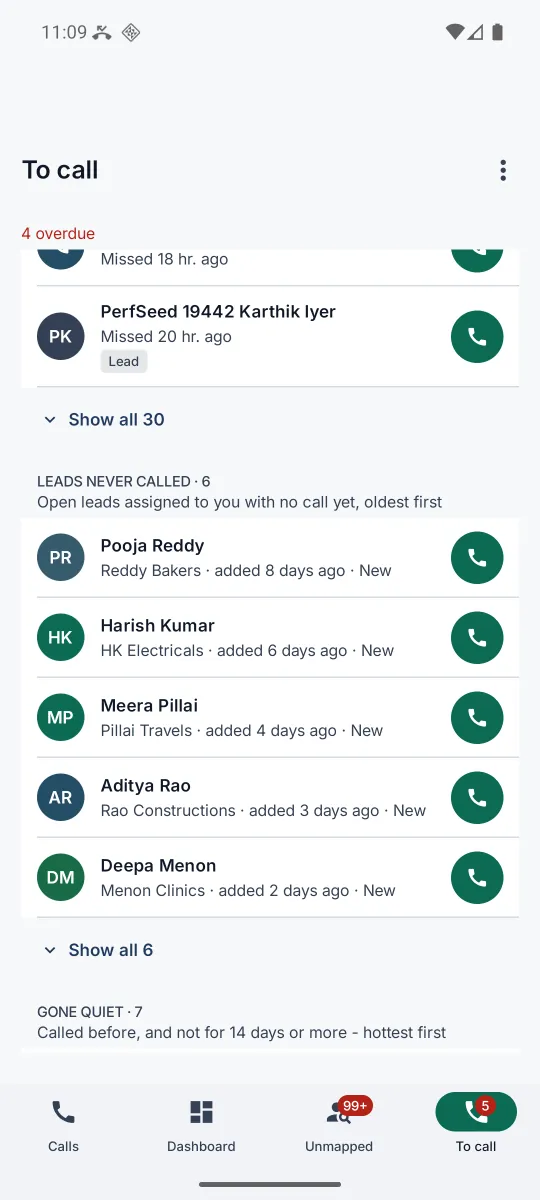
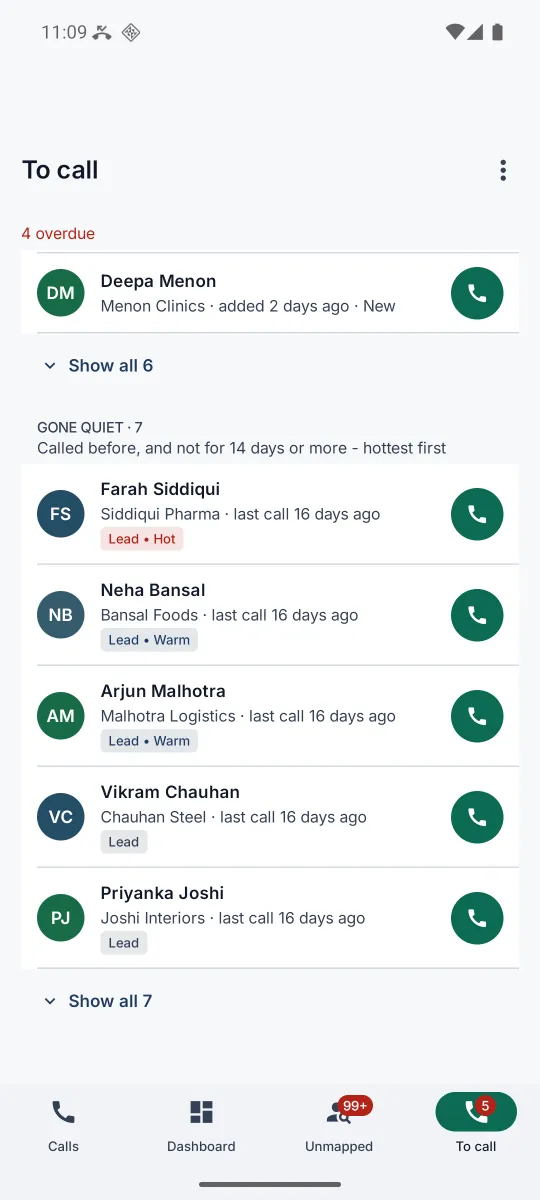
To call is the rep's list for the day. The callbacks they booked come first, overdue then today's, and the ones for later days come last. In between are the calls nobody booked:
- Missed, not called back - missed calls from the last seven days that nobody has rung back, one row per number. A colleague's call back counts.
- Leads never called - open leads assigned to the rep, with a number and no call yet, oldest first. The rule of Never contacted.
- Gone quiet - leads and customers the rep has called, but not for fourteen days or more, hottest first. The rule of the Accounts going quiet report.
Each row has a call button and opens the record's history. Someone with a callback already booked is left out of the three lists, and the whole tab is the rep's own even for a manager: it is a to-do list, not a report.
Tapping any call opens its detail, which is where the rep does the actual filing.
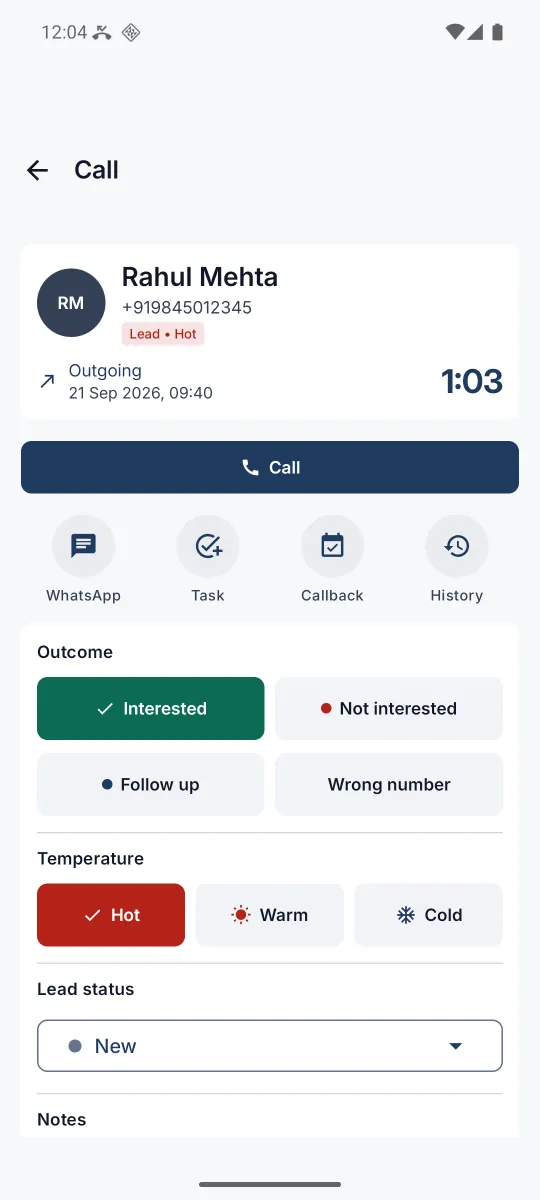
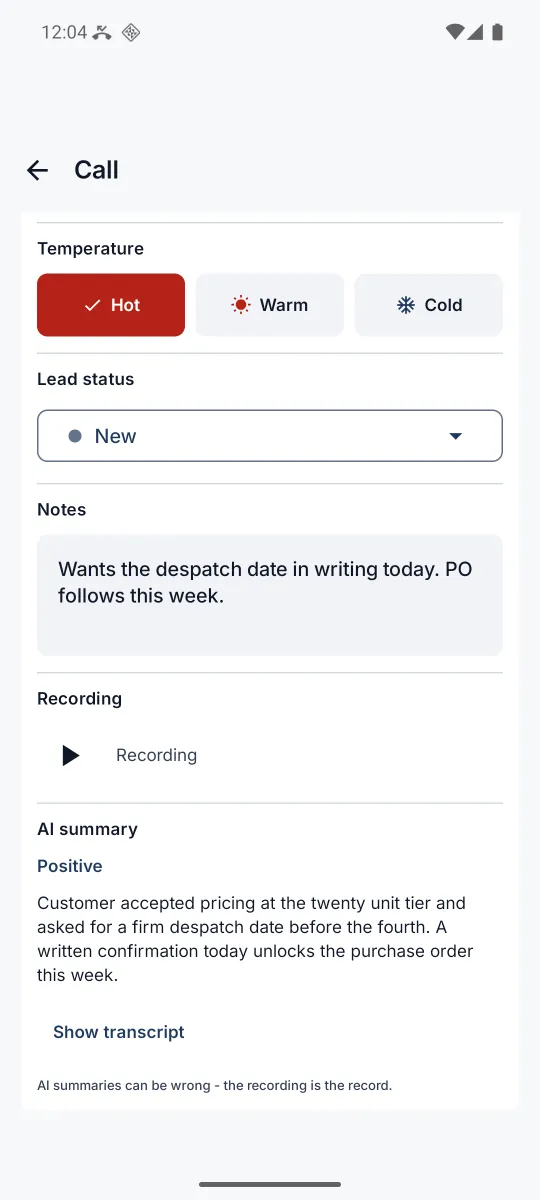
Lead status. When the call is with a lead, the rep can move it along the pipeline from here, with the statuses and colours of the CRM's kanban. The change is the kanban's own: it appears in the lead's activity log under the rep's name, and Outcomes and ROI credits it to the call. The status a converted lead gets is not offered, since a lead moved there by hand would read as converted.
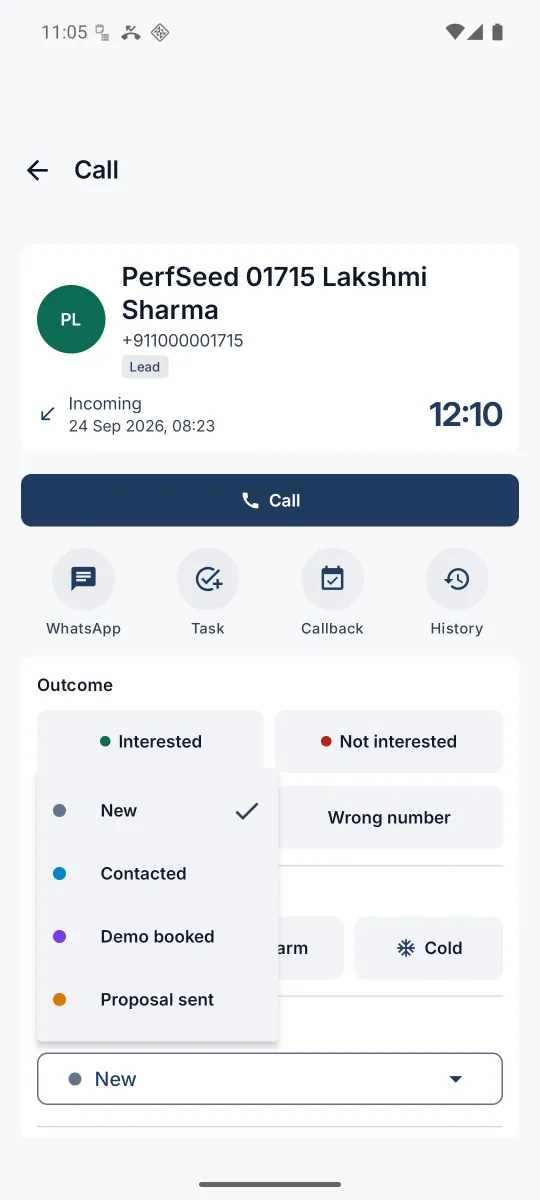
edit
capability, and a lead the rep may open in the CRM.
History lists every call with the record, like its Calls tab in the CRM. For a customer, that includes calls filed against any of its contacts.
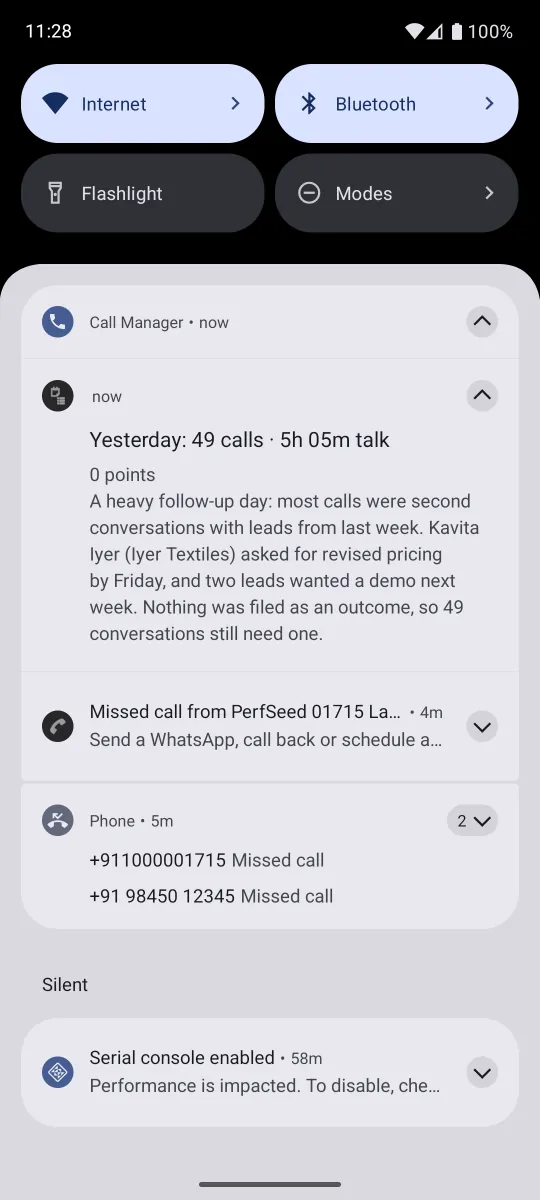
On the home screen. The Today widget shows the three targets as meters and the next callback, or how many are overdue in red. It draws from what the app already holds, so it never waits on the network, and it is kept fresh while it is placed. Once a morning, if you switch it on (settings), the rep also gets yesterday's summary as a notification: calls, talk time, points, target met or not, callbacks kept and missed, and the AI paragraph.

Outcome and temperature tiles carry their meaning in colour as well as words: an outcome you coloured green or red in the CRM keeps that colour on the phone, and Hot, Warm and Cold each have their own mark. Calls from the last minute read Just now, and the notice that recording cannot work on a phone can be dismissed once read. Diagnostics still explains why.
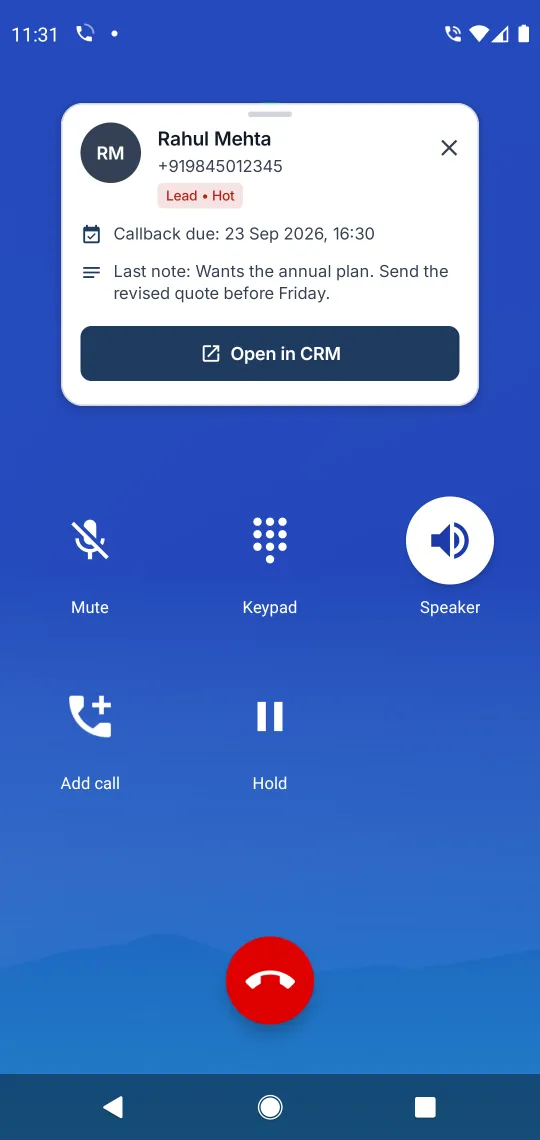
19. The caller card and the post-call prompt
While the phone rings and for the rest of the call, a card over the dialer tells the rep who is on the line. The moment the call ends is the only moment a rep reliably remembers what was said, so the app then offers a prompt: file the call, send a WhatsApp, call back, or schedule one.
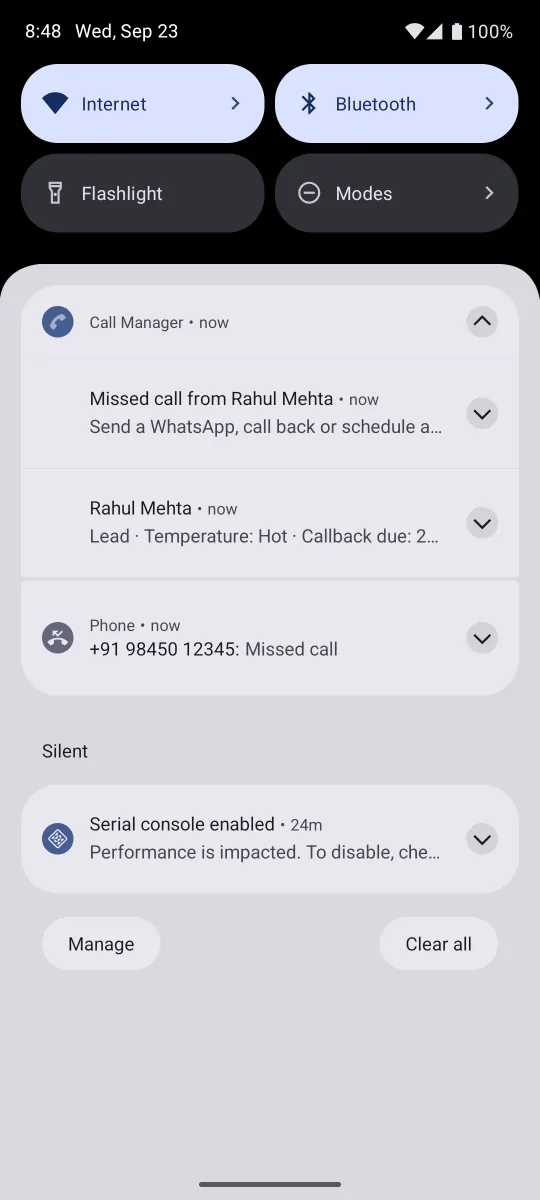
When the call connected, the card also carries your outcomes as buttons. Tap Interested and the call is filed without the app being opened. The tap is kept on the phone and sent with the call when it syncs, so it works with no signal too. A missed call gets no outcome buttons, because there is nothing to file yet.
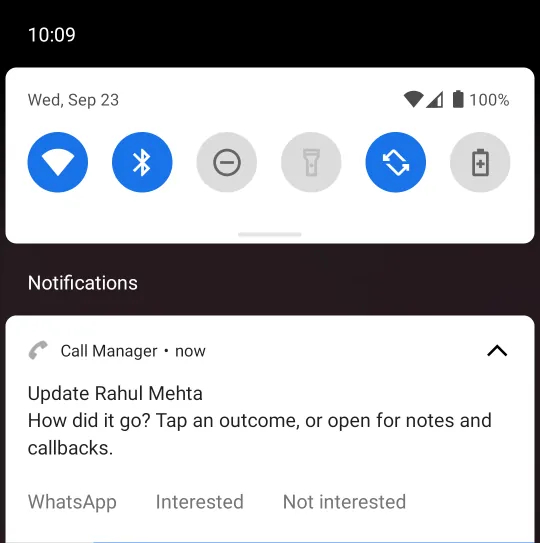
Android fits three buttons on a notification: WhatsApp when it is switched on, then your outcomes in the order they are listed under Call outcomes. Put the ones reps use most at the top.
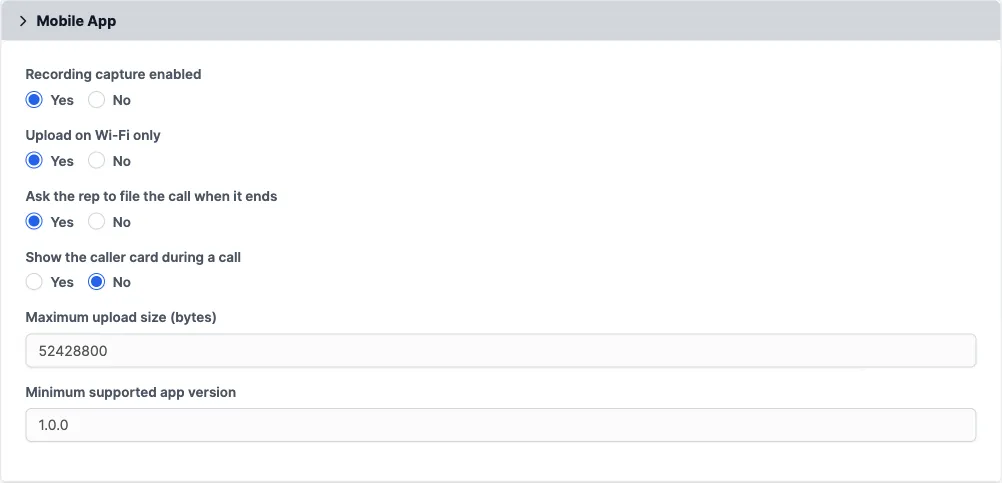
A fresh install has the post-call prompt disabled. Turn it on at Setup → Settings → Call Manager → Mobile App, with Ask the rep to file the call when it ends. The handset's WhatsApp suggestion rides that prompt's notification, so it stays quiet until the prompt is enabled; the WhatsApp buttons inside the CRM work either way.
The caller card is the same, with Show the caller card during a call. The phone also has to allow Call Manager to display over other apps; without that permission the same details arrive as a notification instead.
For a lead, the card also says where it is in the pipeline, Lead · Demo booked, so the rep knows before saying hello whether this is a first call or a demo to confirm.

20. Handsets and SIM cards
Call Manager → Devices lists every phone that has signed in, grouped under the rep who carries it: what it is, which cards are in it, which version of the app it runs, when it last talked to the CRM, and whether it is still signed in.
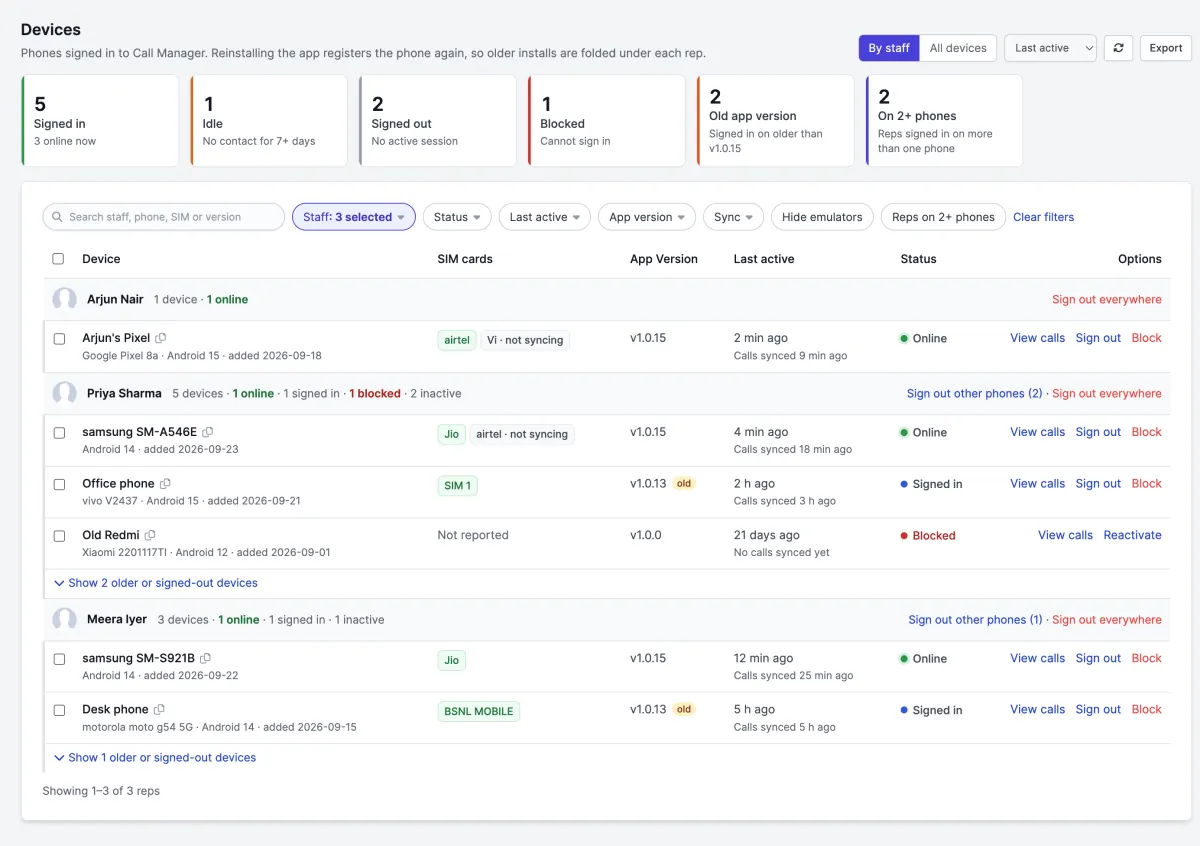
| Status | What it means |
|---|---|
| Online | The phone contacted the CRM in the last 30 minutes. |
| Signed in | The phone has a live session and was seen in the last 7 days. |
| Idle | The phone is still signed in but has been silent for 7 days or more. It usually means the app was uninstalled or reinstalled. Sign it out. |
| Signed out | The phone has no session. The rep can sign in on it again at any time. |
| Blocked | An admin blocked the phone. It cannot sign in until somebody reactivates it. |
Reinstalling the app, or clearing its data, registers the phone again as a new device. The page recognises the leftovers: the same make and model, added earlier, and now idle or signed out. It marks them replaced by a newer install and folds them under the rep, so each rep shows the phones they actually carry.
You can filter by Staff, Status, Last active, App version and Sync. The App version filter can also pick every phone older than the newest version in use. The Sync filter finds a SIM that is not syncing, a phone that reported no SIMs, or one that has never synced a call. Hide emulators drops Android test devices, and Reps on 2+ phones shows only reps signed in on more than one phone. Search matches staff, phone name, model, SIM, app version and device ID. The page remembers your filters in this browser. All devices switches to one row per phone, and Export downloads the filtered list as a CSV file.
Sign out and Block mean different things. Sign out ends the session and nothing else. The rep signs in again and carries on, which covers a new phone or a mis-click. Block is for a lost or stolen phone. It ends the session and keeps the phone locked out until somebody reactivates it. On a rep's row, Sign out other phones keeps their most recently used phone and signs out the rest, and Sign out everywhere ends every session they have. To act on several phones at once, tick them and use the bar that appears above the list. View calls opens All Calls filtered to that one phone.
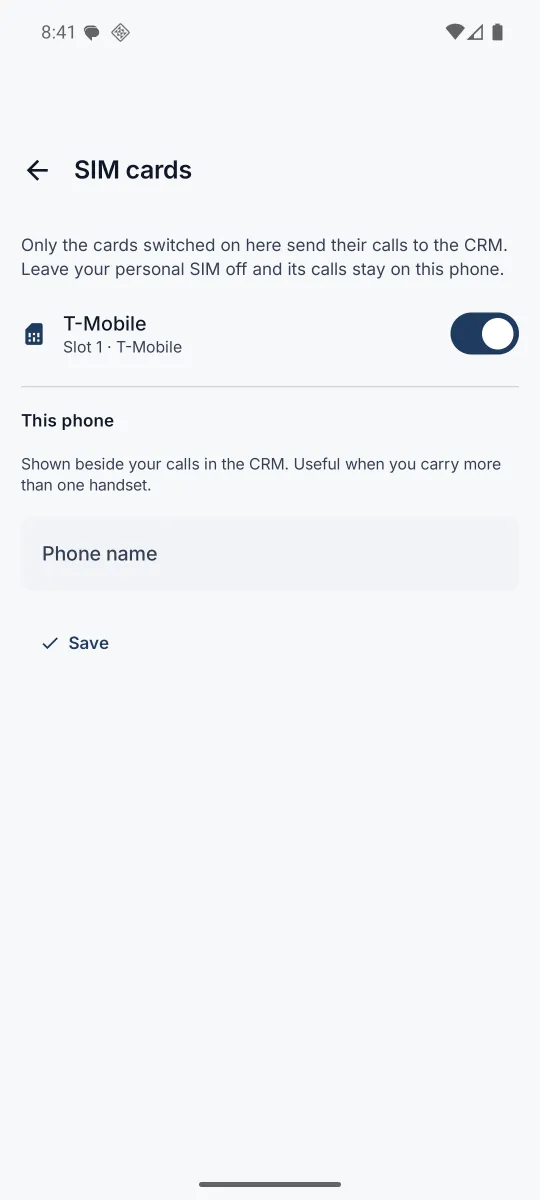
Dual SIM is handled properly, because a rep with a work card and a personal card in one phone should not have to choose between using the product and keeping their private calls private.
21. When recordings do not arrive
Rather than make you guess, the app has a page that tells the rep exactly where the chain is broken, in the order the chain runs.
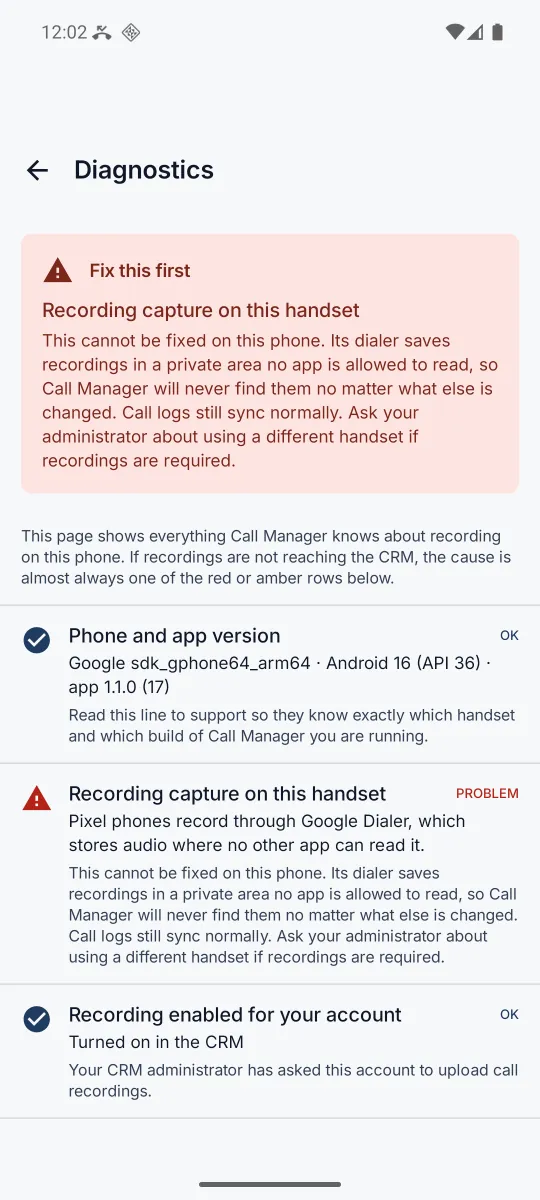
The page opens with Fix this first: the single blocking check, what it means in plain language, and the button that clears it. Twelve rows is a lot to read when only one of them is the reason recordings are missing, and every row a rep can act on now carries its own control - storage access, call log, phone state, notifications, battery optimisation, a rescan, or the recorder setup screen. Nothing sends them off to hunt for a prompt on another tab, and the storage buttons stay on the page for as long as access is short of full, so a rep who skipped the prompt the first time can come back to it whenever they like.
Two of those rows are worth reading together. Recording sweep says when the app last looked through the recording folders, and whether uploads are set to wait for Wi-Fi - finding a recording never waits for anything, but sending one can. Recorder activity sits directly below it and reports what was found. If the sweep has never run, or access to the recordings folder is missing, the recorder row says so plainly instead of blaming the phone's dialer: an empty result is only evidence about the dialer once the app has actually been able to look.
The Upload queue row below them counts what is waiting, what has gone, and what was refused - a recording the CRM will not take, almost always one larger than the maximum upload size set under Mobile app. That is a number an administrator can act on by raising the limit, which is why it is on the page rather than buried in a log.
The folders, opened rather than listed
Folders being watched does not just name the paths - it opens each one and says what is inside: whether it can be read at all, how many recordings are in it, and the newest. That distinction is the whole point. A phone with no storage grant used to report three folders being watched beside zero recordings found, and nothing anywhere said which of the two was true, so the app looked healthy while it was locked out. Watched and readable are different facts and only the second one matters.
If a dialer saves somewhere the app's search does not score, the rep can point at the folder themselves. Add folder opens the picker at Internal storage → Recordings; they can add as many as they need, remove one picked by mistake, or go back to the folders the app finds by itself. A chosen folder replaces the search rather than joining it - picking one is how a rep says the search got it wrong, and out-voting them would be a bug. Where the phone has granted access to all files, the choice is kept as a plain path rather than a shared folder, which lets the app watch it directly: the recording then arrives seconds after the call instead of on the next half-hourly sweep.
Proving it works
While anything is running in the background a progress strip sits under the title and says which half of the pipeline is busy - syncing calls, working on recordings, or both. It is pinned rather than in the list, so scrolling cannot hide it, and it reflects only work that is genuinely in flight: a periodic job waiting out its interval, or an upload waiting for Wi-Fi, is not activity and does not pretend to be.
Check my recording setup runs the scan there and then and answers in numbers - folders read, recordings found, how many matched to a call, how many are waiting to upload - with a line saying what to do next. It tells apart the three cases that matter: nothing found because the folder is wrong, nothing found because it was all picked up already, and recordings found that have not yet lined up with a call. A rep can therefore settle most of this without ringing anyone; Copy diagnostics is still there for when they cannot.
There is a matching setup screen for the parts that can be fixed: keeping the app alive in the background, and getting at battery optimisation, both of which are the usual culprits on Xiaomi, vivo, OPPO and realme.
22. The settings, in plain words
Everything lives under Setup → Settings → Call Manager. The section names sit in a list down the left of the page and stay on screen; click one and that section, and only that section, fills the page beside it. The page remembers which section you were on when you save, so pressing Save does not throw you back to the top, and a warning mark beside a name in the list means that section has something to look at. The manual has the exhaustive reference; these are the sections you will actually open.
Sync
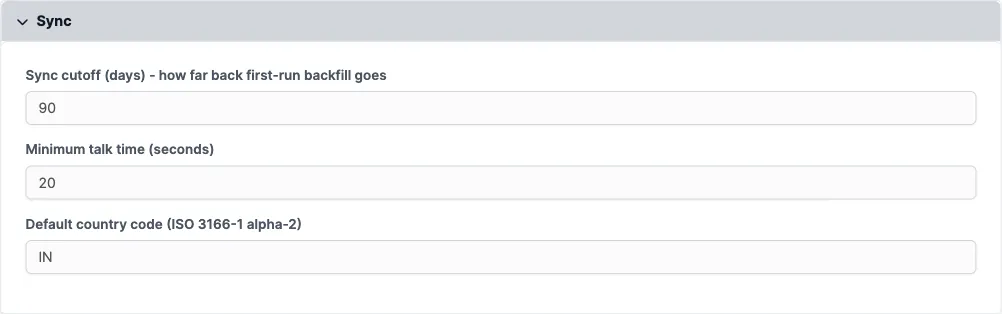
0 means no backfill, only calls made after the handset enrolled.
Call outcomes
Productivity
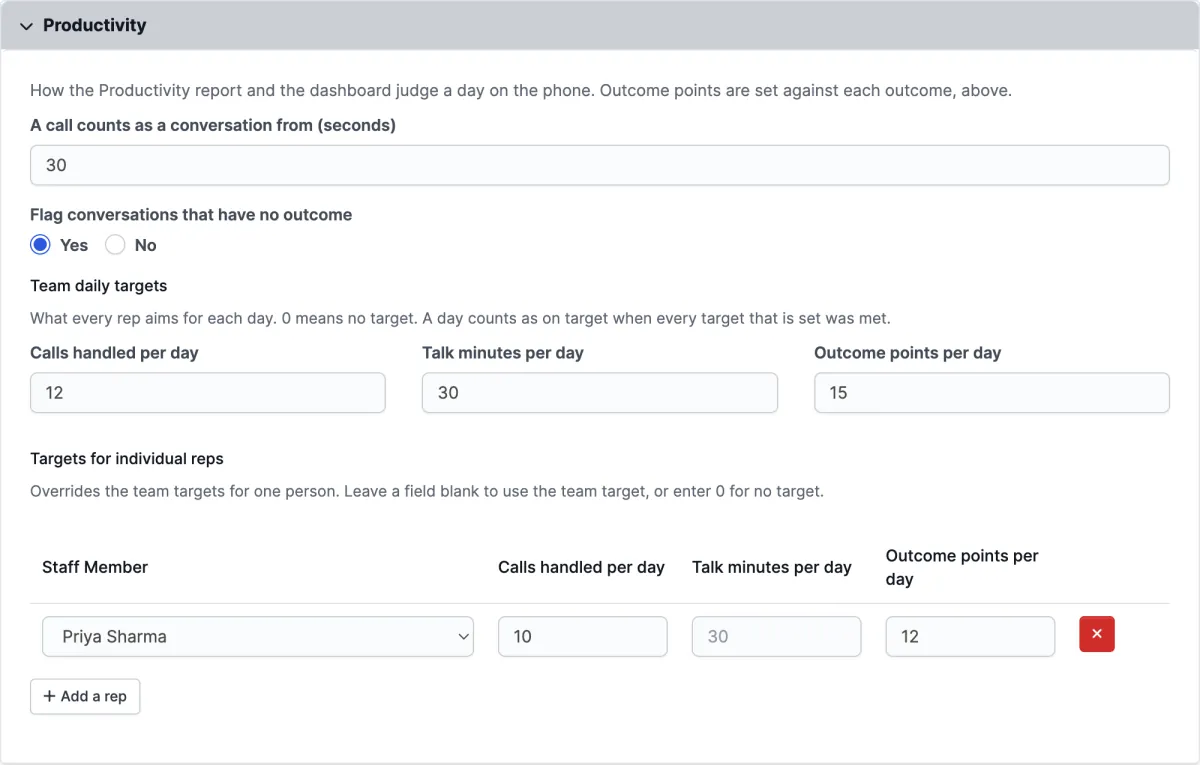
A call counts as a conversation from sets the dividing line, 30 seconds by default, between a real conversation and a ring or a hang-up. Flag conversations that have no outcome is on by default. It adds the missing-outcome count to the dashboard and the list to the Productivity report. Team daily targets are calls handled, talk minutes and outcome points per day. Each is 0, meaning no target, until you set it, so nobody is shown missing a goal that was never set. Targets for individual reps overrides the team figures for one person. A blank field keeps the team figure, which is shown faintly in the box, and 0 means no target for that rep.
Daily summary
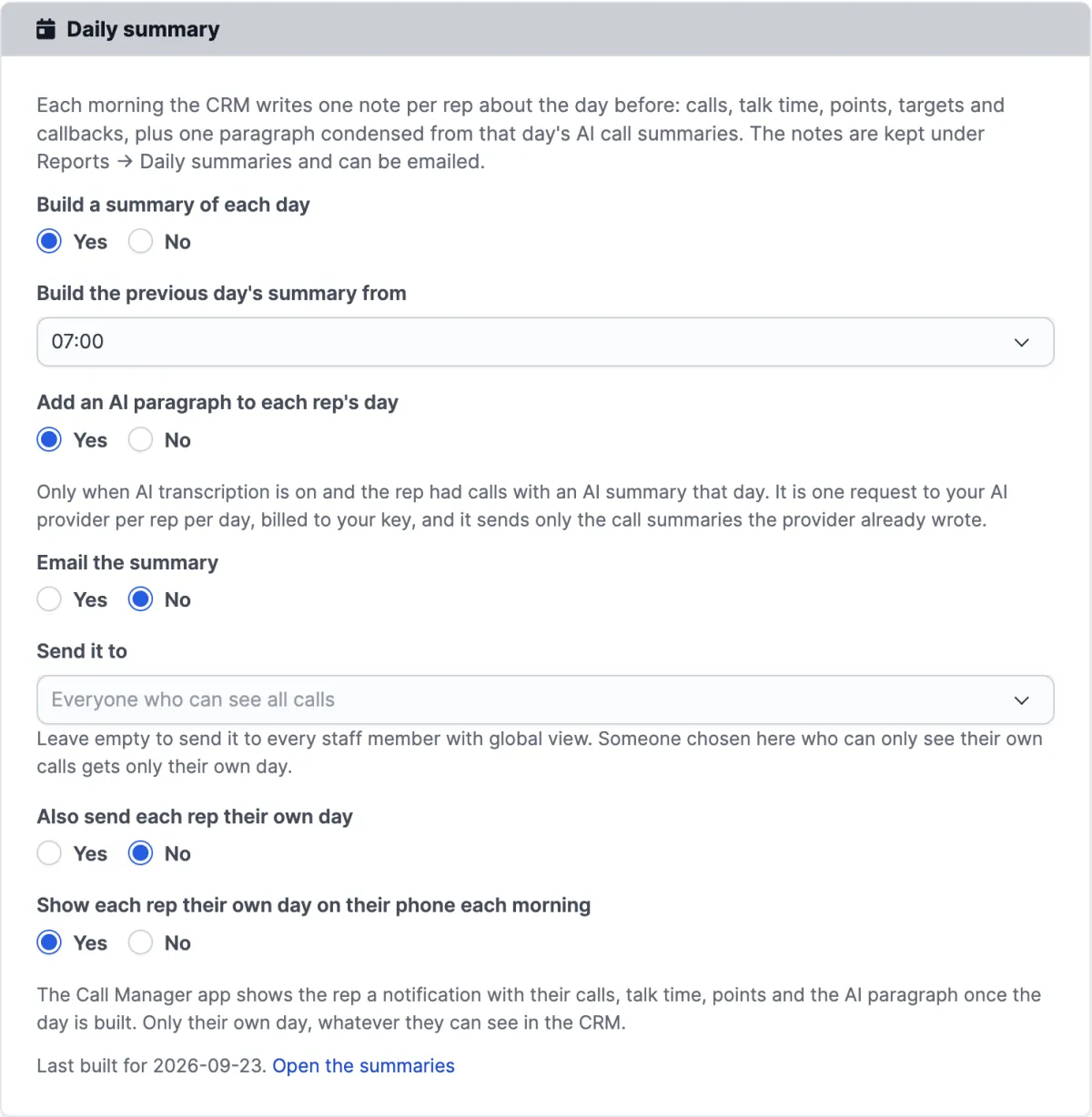
Build a summary of each day is on by default, and Build the previous day's summary from sets the hour, 07:00 by default. Add an AI paragraph to each rep's day only has an effect while AI call summaries are switched on. Email the summary is off by default. Once it is on, Send it to picks the recipients (left empty, everyone who can see all calls) and Also send each rep their own day adds the reps. Show each rep their own day on their phone each morning is off by default; switched on, the app shows each rep their own day as a notification once it is built. The line at the bottom says which day was last built and last emailed. See Daily summaries.
Outcomes and ROI
Credit a call with outcomes up to this many days later is the window for crediting an outcome to a call: 7 days by default, up to 90. A longer window lets a call from weeks ago take credit for a sale it had nothing to do with. Team hourly cost, in your base currency, turns on the cost and return figures; 0 keeps them hidden. Hourly cost for individual reps overrides it for one person. See Outcomes and ROI.
Mobile app
23. Storage and retention
Recordings are written outside the document root from the first activation, so they cannot be fetched by guessing a URL, and they are not swept up by a backup that only covers the CRM folder.
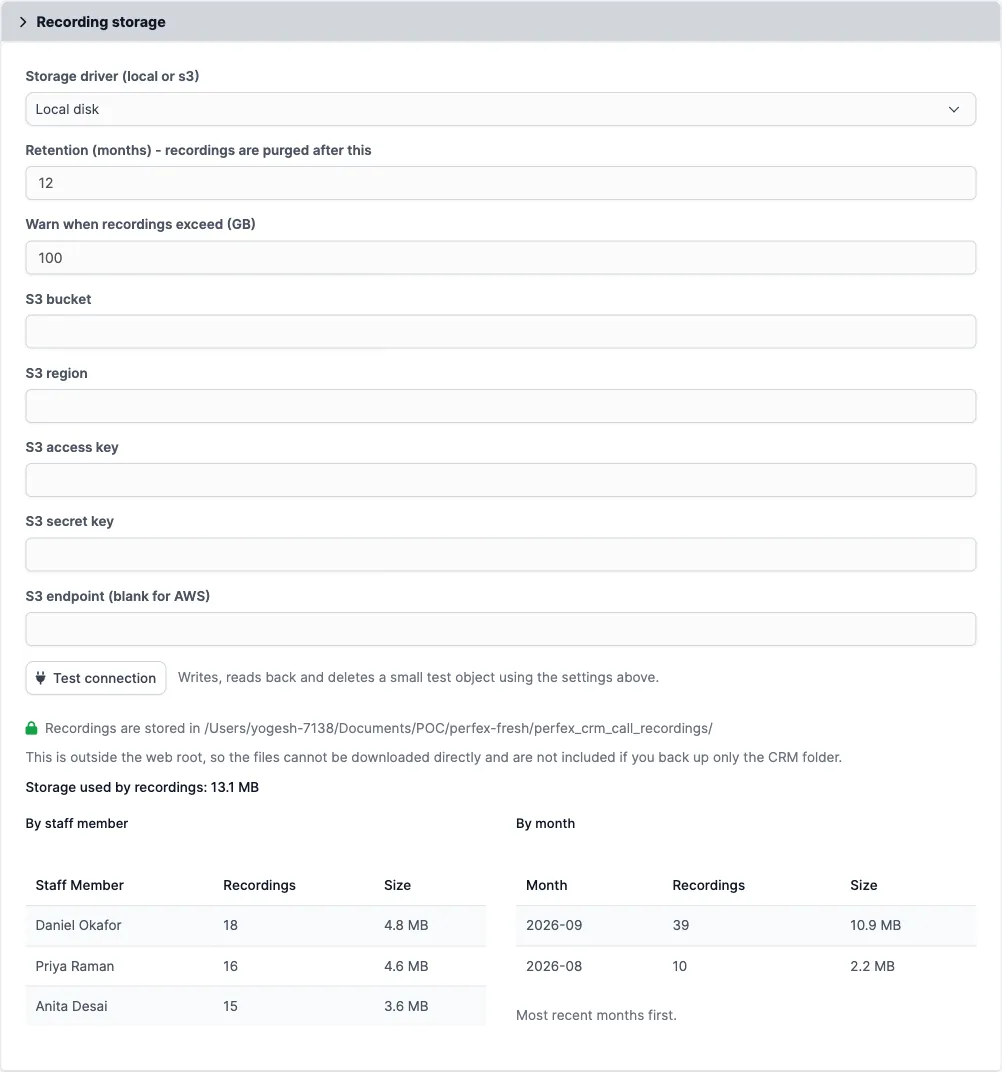
Retention is a number of months, and a purge runs on the CRM's own cron. Set it to match whatever your data retention policy says, and note that purging a recording purges its transcript with it.
The playback log is kept separately
The record of who listened to what has a retention period of its own, under
Recording playback log on the same settings page. It defaults to
24 months - deliberately longer than the recordings themselves - and a
nightly job trims anything older. Setting it to 0 keeps the log forever.
"Who listened to my calls?" is a question that gets asked after the recording is gone, usually months later and usually by the rep whose voice was on it. If the log were purged on the same clock as the audio, the evidence would disappear at exactly the moment someone needed it. Keep it at least as long as your recording retention, and longer if you are in a regulated trade.
One row in that log is one request, not one sitting: a browser re-fetches the file each time the listener drags the position slider, so a single listen can appear several times. The panel shows the twenty most recent and says so; it is there to answer "is anyone listening to recordings, and who", not to be read end to end.
Where the module cannot work out your document root, it falls back to a directory inside
the web root protected by an unguessable path and an .htaccess file. Apache
honours that file; nginx ignores it entirely, which turns the protection into obscurity.
The settings page warns you, and the manual carries the block to paste.
24. Who can see what
The module adds a call_manager feature to the CRM's own permission system, with
the distinction that matters for a product that stores recordings of people's voices:
| Capability | What it grants |
|---|---|
| View | The whole team's calls, recordings and transcripts. This is the manager's grant. |
| View own | Only that person's own calls. This is the grant a sales team actually hands a rep: they can use the app fully, work their own queue and play their own recordings, and cannot listen to a colleague's conversations. |
Both are enforced everywhere, including through the REST API, so a rep with view own cannot reach a colleague's recording by asking the API for it directly. The Devices page and the team-wide dashboard are global-view only. The Productivity reports follow the same rule: a rep sees their own row and their own targets, and can file an outcome from the missing-outcome list only on their own calls.
Saved views follow the same rule. A view shared by a manager shows each rep only their own calls, and a staff filter saved in it simply has no effect for someone who can only see their own. A private view is visible only to the person who saved it.
The app's 1.0.17 additions keep to the same lines. The To call list, the
Today figures on the widget and the morning summary are
always the rep's own, even for someone who can see everyone's calls. Moving a
lead's status from the app needs the Call Manager edit
capability and a lead the rep may open in the CRM. Logging a call needs
create and always logs it as the rep's own. A callback alarm
rings only on the phone of the rep it is assigned to.